
What it means to enhance a photo
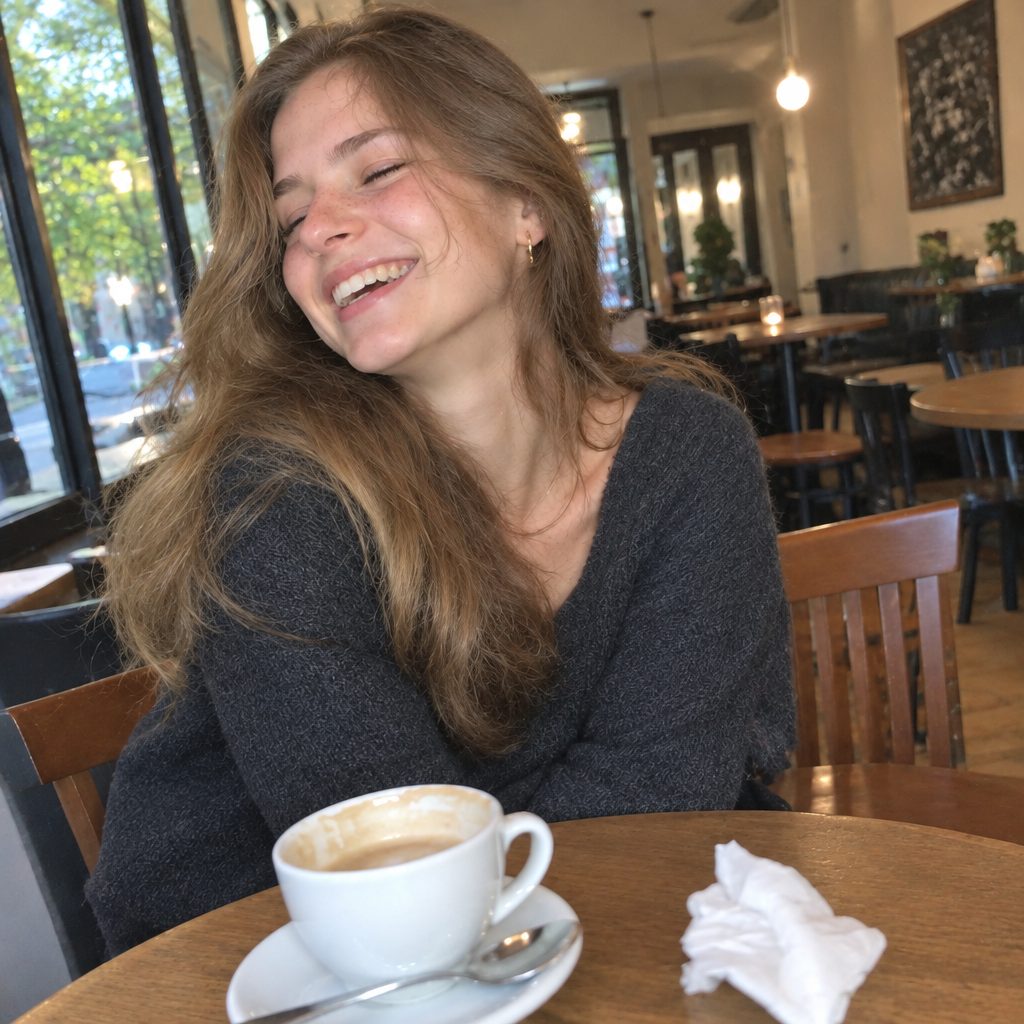
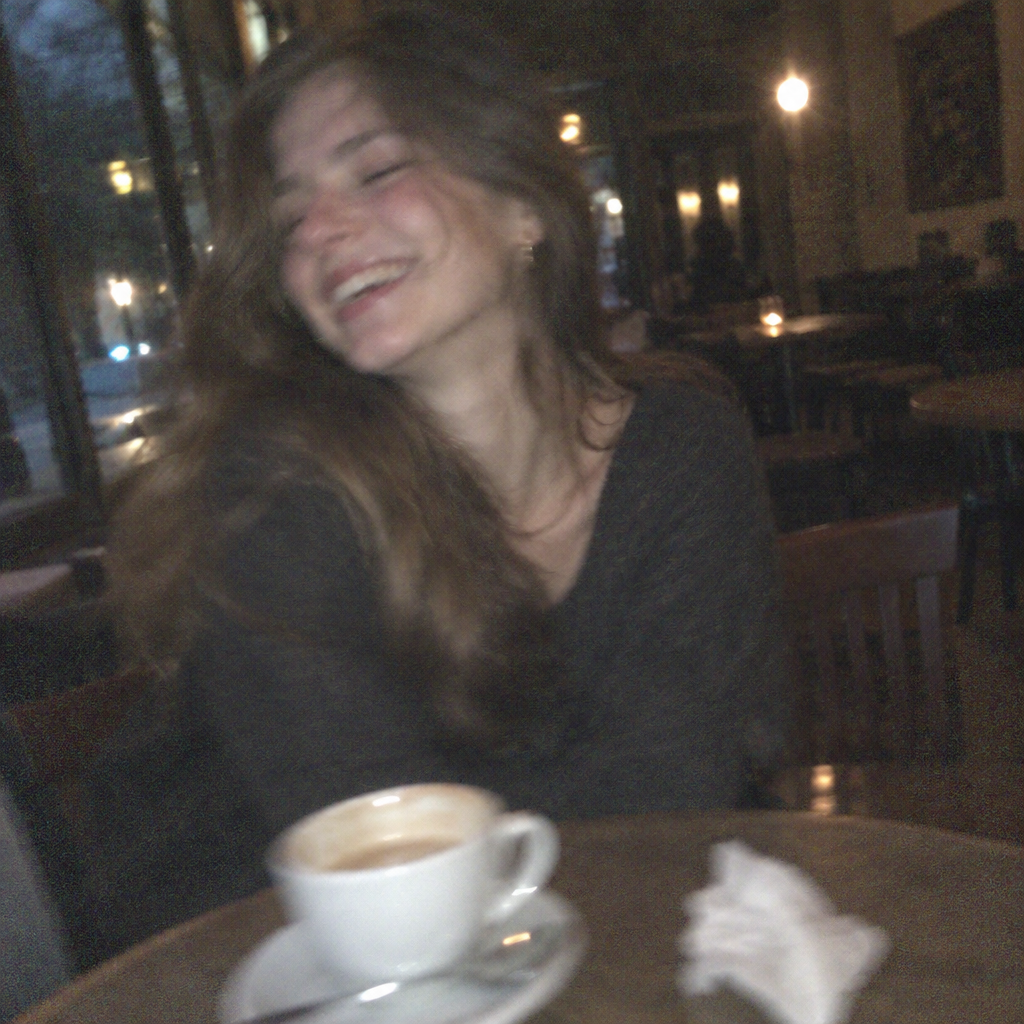
People search for an AI image enhancer when a photo is not quite good enough. It might be dark, flat or too yellow. It might be grainy because it was taken at night. It might be soft, small or an old scan that has faded. The word enhance covers all of these, and that is the first thing worth understanding: it is a broad word for several different fixes.
In practice the fixes fall into two groups. One group changes how the picture looks: the light, the colour balance, the noise, the sense of sharpness. The other group changes how big the picture is, by adding pixels so that it can be shown or printed larger. A good result starts with knowing which of the two your photo needs.
Enhancing is not the same as enlarging
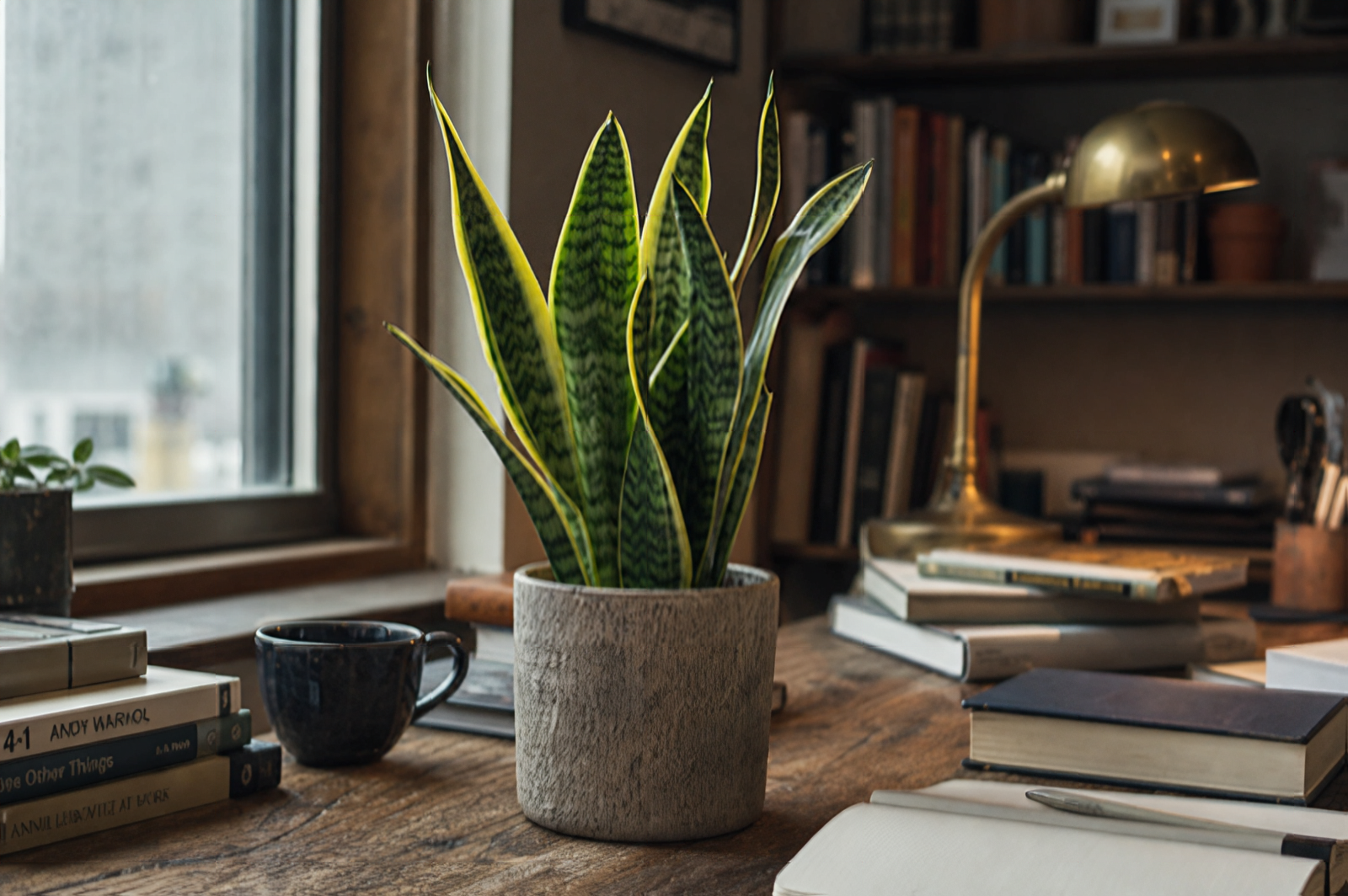
Enlarging, also called upscaling, makes an image bigger. FlowPix does this with a dedicated enlargement model. It is not a redraw of the picture. It adds pixels and rebuilds fine detail and edges in a small or soft image, and you choose the scale in your request. If your problem is size, this is the tool, and the AI Image Upscaler page covers it in full.
Enhancing by description is a different thing. You attach the photo and say what to fix: the lighting, the colour balance, the noise, dull colours, softness. FlowPix then redraws the picture with those changes. The picture is regenerated, so it can look better overall, but it is no longer a pixel-for-pixel copy of what you started with.
The difference matters because the two have opposite risks. An enlargement keeps the picture as it is and makes it bigger, but it cannot fix bad light. A redraw can fix bad light, but small details can shift. Use the one that matches your problem, and do not expect either to do the other's job.
How to enhance a photo in FlowPix
Open the app and attach your photo in the chat. Then decide which kind of improvement you want. For size, ask for an upscale and say how much larger you want the picture. For look, describe what to fix in plain sentences: brighten the shadows, correct the yellow cast, reduce the grain, make the colours less dull.
FlowPix returns a new picture on the canvas, next to your original. You can slide between the two or put them side by side. If one step was not enough, try the other. Many people enhance the look first and then upscale the version they like, or upscale first and then fix the light. Both orders are fine, and because everything stays in the same chat you can go back to an earlier version at any time.
Each step uses credits from your balance, so it is worth looking at a result closely before you ask for the next one. A clear request the first time usually saves more steps than a vague one.
What to expect, and where the limits are
Expect a photo that looks cleaner and more balanced, not a different photo. Enhancing by description is good at overall look: lighting, colour, a calmer background, less visible noise. Because the picture is redrawn, small details such as faces, text and textures can shift. A sign can read slightly differently, and skin or fabric can look a little different from the original.
Upscaling has its own limits. The model adds pixels and rebuilds edges and fine structure, and a small or soft image often looks much better at a larger size. But it only works from what is in the photo. Nothing can recover detail that was never captured: a face that is only a few pixels wide, a number that was never legible, a texture that was lost to heavy compression.
So treat both results as improvements, not as the truth. If a photo has evidential or sentimental value, keep the original, and use the improved version for the job it is meant for.
How to describe what you want
Name the problem and the result in ordinary words. Instead of saying make it better, say the photo is too dark and the colours look flat, and that you want clean, even light and natural colour. Name only what you want changed, and say what must stay: the faces, the text on the label, the background, the composition.
Be specific about the kind of fix. Noise, softness, a colour cast and uneven light are different problems with different descriptions, and a request that mixes five of them at once is harder to judge. It often works better to fix the biggest issue first, look at the result, and then ask for the next one.
When the goal is size, say so and say how large. Add what you will use the picture for, such as a print or a product page, because a clear purpose helps you judge whether the result is good enough.
When each approach fits
Old scans often need both. The colour has faded and the light is flat, which is a look problem, and the scan may also be too small to print, which is a size problem. Describe the fix for the colour first, then enlarge the version you like. Keep the original scan safe, because faces in old photos are easy to shift in a redraw.
Phone photos usually need the look fixed: a dark shot, a colour cast, grain from a night photo. Enhance by description, and compare the people and the background with the original. Screenshots and small web images are mostly a size problem, so upscaling suits them, although text in a screenshot is better recreated from the source than rebuilt from the pixels.
Product photos can need either. A soft supplier image often benefits from an upscale, while a dull studio shot benefits from a cleaner light and truer colour. For anything with a logo, a label or small print, check those details with extra care.
How to check the result
Always compare with the original. Put the two next to each other on the canvas and look at the parts that matter: faces, eyes, hands, text, fine textures and edges. Zoom in, because a redraw can look right at a glance and different up close.
Ask yourself whether the picture is better for what you need it for, not whether it looks impressive. If a small detail changed, ask again and say what must stay the same. If the result is good overall but one area is wrong, describe that area and ask for a fix.
You decide when it is good enough. A second or third try is normal. When you are happy, keep both versions, so you can always return to the original photo.