
Pixelated, grainy and blurry are three different problems
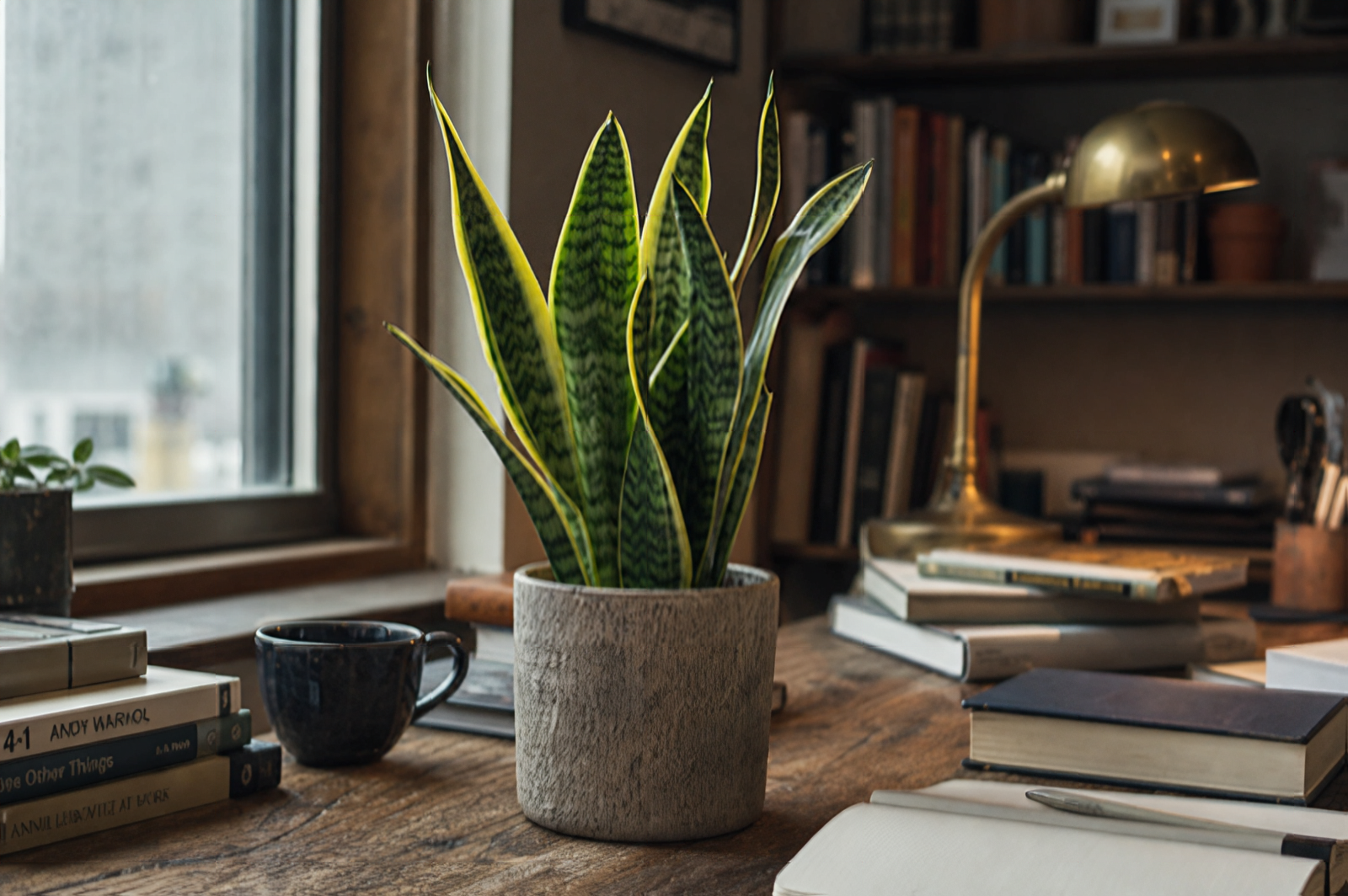
People use these three words as if they meant the same thing, but each one has its own cause. A pixelated photo has too few pixels for the size at which it is shown. The file may be small, it may have been cropped hard, or it may have been enlarged beyond what it can carry, and the square blocks you see are the pixels themselves.
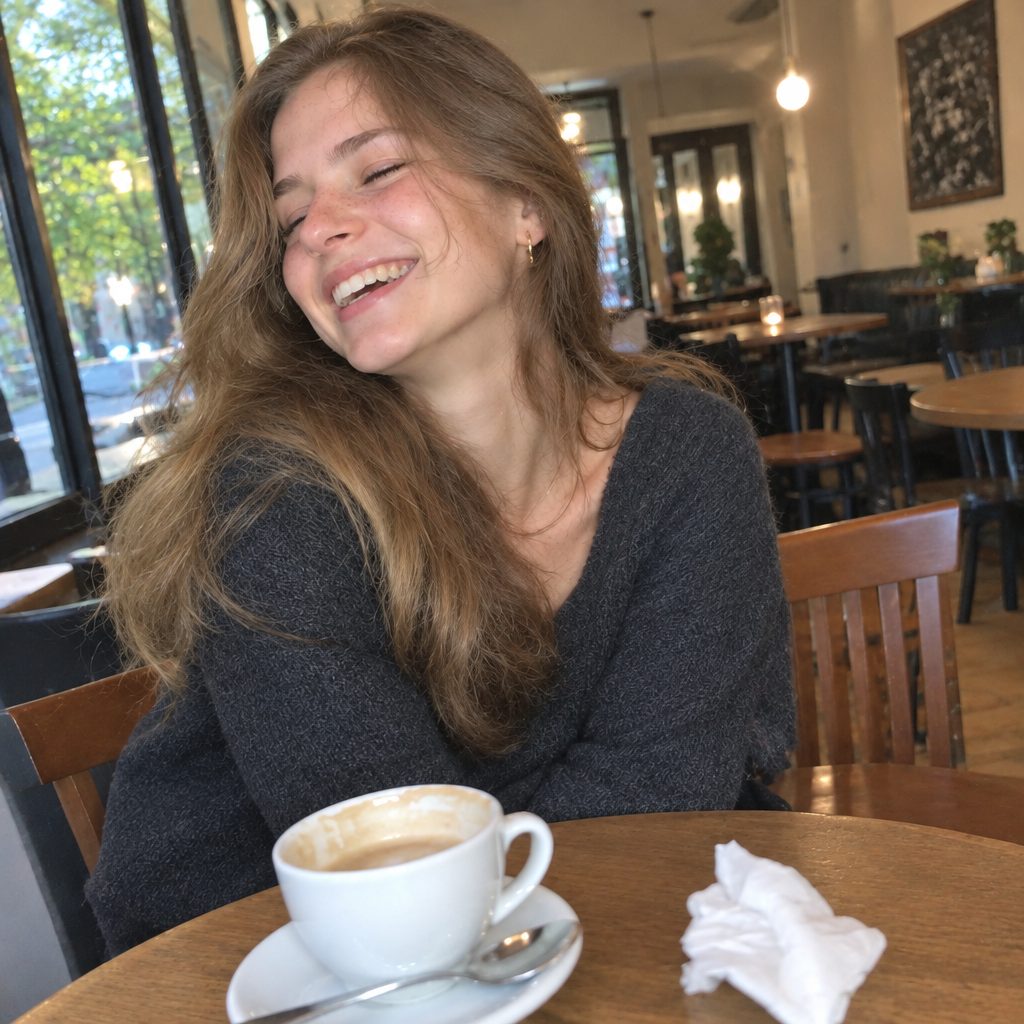
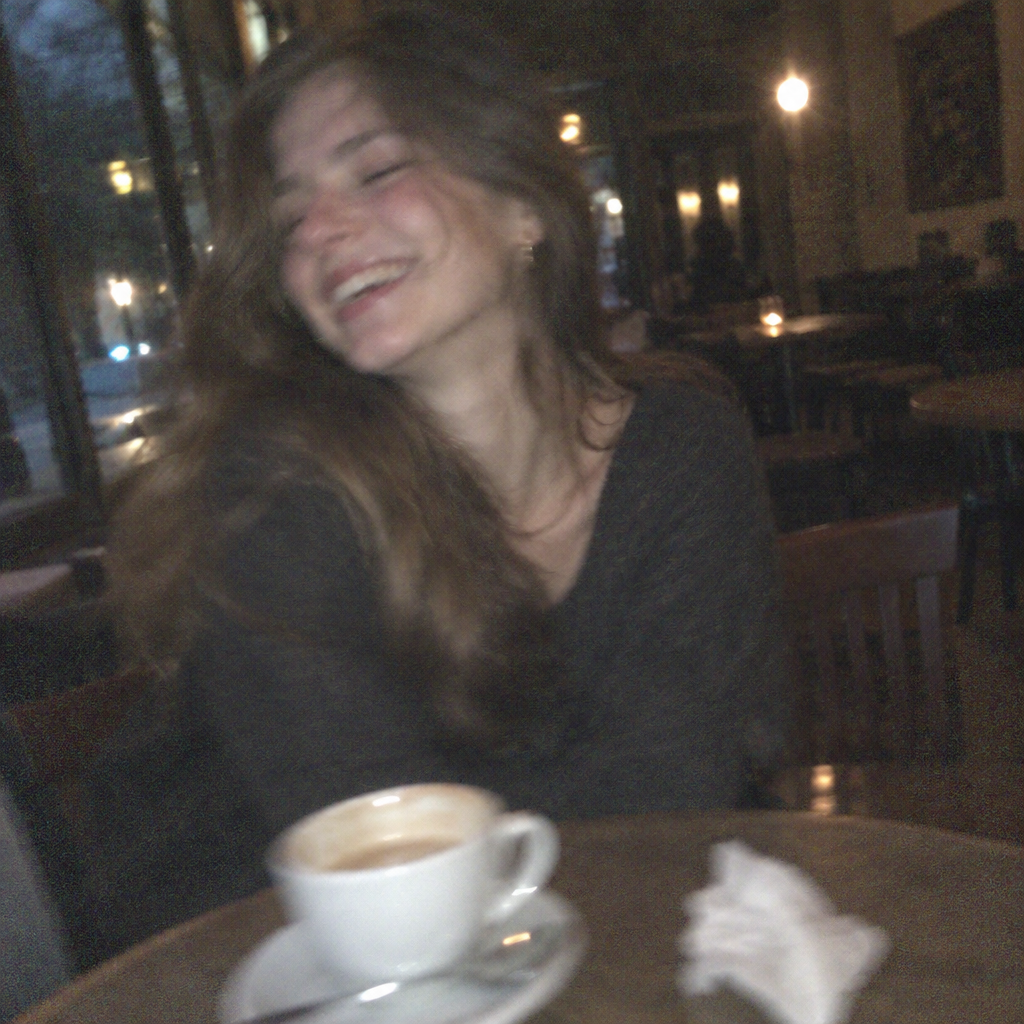
A grainy photo is a noise problem. It usually comes from dim light, a high sensitivity setting on the camera or heavy compression, and it shows up as speckles and a rough surface rather than blocks. A blurry photo is a focus or movement problem: the camera missed the focus, or the subject or the camera moved while the picture was taken.
This matters because the cure for one does not cure another. Enlarging a grainy photo gives you a bigger grainy photo, and removing noise from a pixelated one does not add the pixels it lacks. Look at your picture closely first, decide which of the three it is, and then pick the step that fits. Many searches for how to fix pixelated photos are really about one of the other two.
Fixing pixelation: enlarge the picture
If the problem is too few pixels, the fix is to give the picture more of them. In FlowPix you attach the photo to the chat and ask for it to be enlarged. This uses a dedicated upscaling model that adds pixels and rebuilds cleaner edges, so the blocky steps along a line turn into smoother ones. The AI image upscaler page explains that tool in full and shows how to say how much larger you want the picture.
Be clear about what an upscaler can and cannot do. It can make a small picture hold up at a larger size, with edges that look cleaner and fine structure that the image suggests. It cannot bring back detail that was never recorded. A face that was only a few pixels wide stays a guess, and so does a line of tiny text.
Enlarge once, from the best original you have. Every time a picture is enlarged and saved again it loses a little quality, so work from the first file whenever you can.
How to fix grainy photos: ask for it by description
For a grainy photo, size is not the issue, so enlarging is the wrong tool. Instead, attach the photo and ask FlowPix to enhance it by description. Say what you want in plain words, for example: reduce the noise and keep the natural texture of skin and fabric. The AI photo enhancer page describes this method in more detail, and it is the one to read if your photo has other problems too, such as flat colour or uneven light.
Know what happens here: FlowPix redraws the picture. It does not subtract the grain from your pixels, it makes a new version of the photo with less noise. The overall look usually becomes cleaner, but fine details such as skin, thread patterns or a small sign can differ from the original.
If the result looks too smooth, almost like plastic, say so and ask for more natural texture. Mentioning the texture you want to keep in the first request often helps, because it tells FlowPix what not to clean away.
How to unblur a photo, and where that stops
Mild blur is the case where something can be done. If a photo is only slightly soft, attach it and describe what should be sharp: the eyes, the lettering on a label, the edge of a building. A specific request gives FlowPix something to aim at, and it redraws those parts with crisper edges. This is the honest way to fix blurry photos that are almost right.
Now the plain truth. A badly out-of-focus photo, or one with strong motion blur, cannot be restored. The information about what was there was never recorded. FlowPix will invent plausible detail to fill the gap, and that detail may differ from what was really in front of the camera. The result can look sharp and still be wrong.
For that reason, do not use an unblurred photo as evidence, as an identity or passport photo, or for anything that must stay exactly as it was shot. For those jobs keep the original and, if you can, take the picture again.
How to ask in chat
Attach the photo to the chat, then write one or two sentences. Name the problem, the result you want and what must stay the same. Plain words work better than technical ones.
For a pixelated picture you could write: enlarge this small picture so it looks clean, without changing what is in it. For grain: reduce the noise in this dim indoor photo and keep the natural texture of skin and fabric. For softness: gently sharpen this slightly soft portrait and keep the face exactly as it is.
Ask for one fix at a time. Look at the result next to the original, then ask for the next change. If a detail changed, say which one and ask again. A second or third try is normal.
When it will not work well
Very small thumbnails are the first hard case. When a picture is only the size of a tiny icon, there is almost nothing to build from, so most of the larger version is invented rather than recovered.
Faces that nobody could recognise in the original stay that way. The result may show a clean, believable face, but it is not necessarily that person's face. Text that is unreadable in the original is the same: the letters may be redrawn as plausible shapes that do not spell what was written.
In these cases treat the output as an illustration, not as a record. A better source picture is usually the best fix, so look for a larger original, a different scan or the file the picture came from before you try to repair a copy.
How to avoid the problem next time
Prevention is easier than repair. Start from the largest version of the picture you have, and when you export, choose a size and a quality setting that match where it will be shown, rather than the smallest file you can get away with. A picture saved small and heavily compressed is the usual source of blocks and noise.
Do not enlarge in an editor and then compress again. Each round of enlarging and saving adds blocky artefacts, and a second round of compression makes them worse. If you must enlarge a picture, do it once and save it at a high quality setting.
Keep the original. Store the untouched file somewhere safe and work on copies, so you can always go back. And in dim light, hold the camera steady or add light, because both reduce grain and blur at the source, which is better than any repair afterwards.