
What a professional headshot AI is here
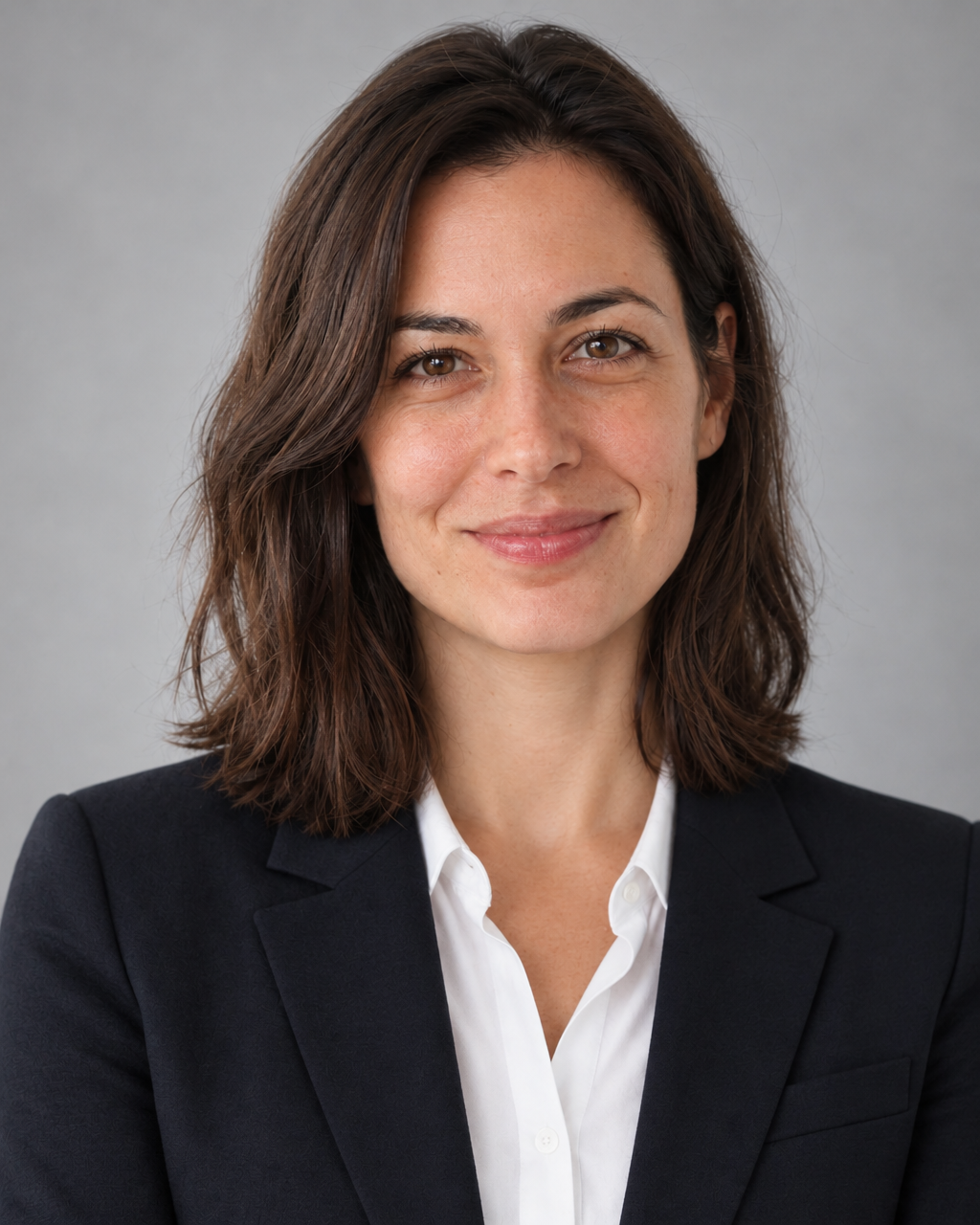
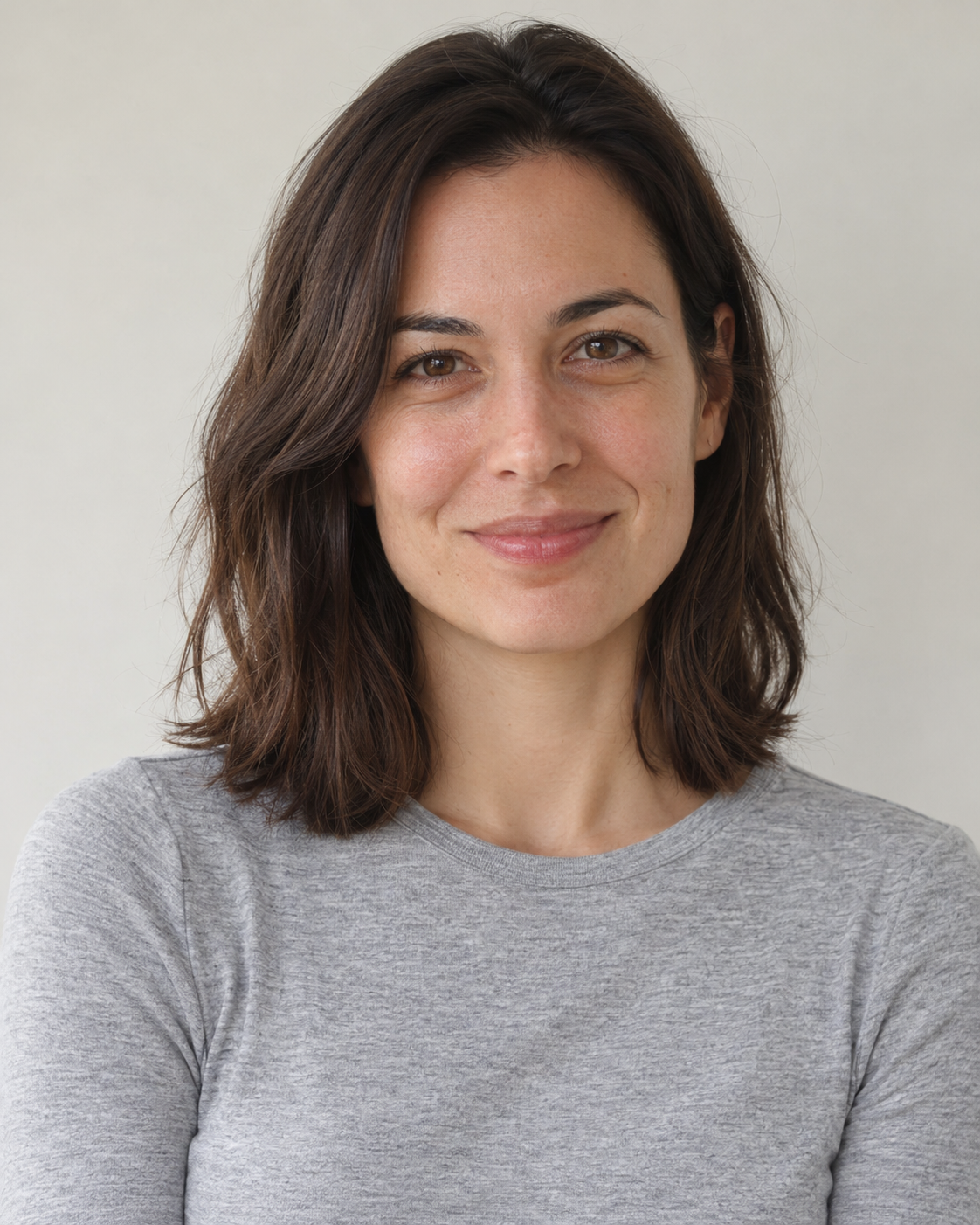
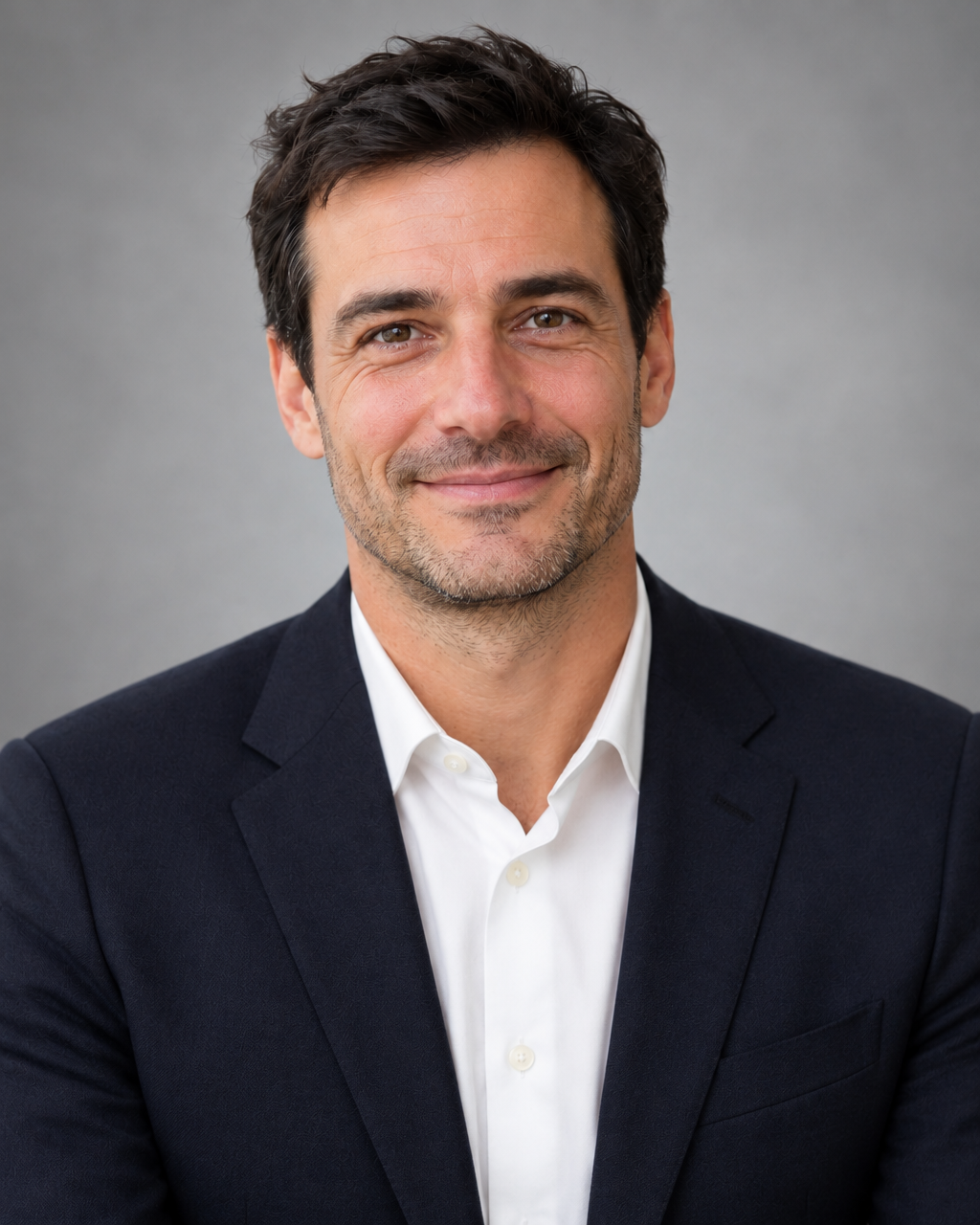
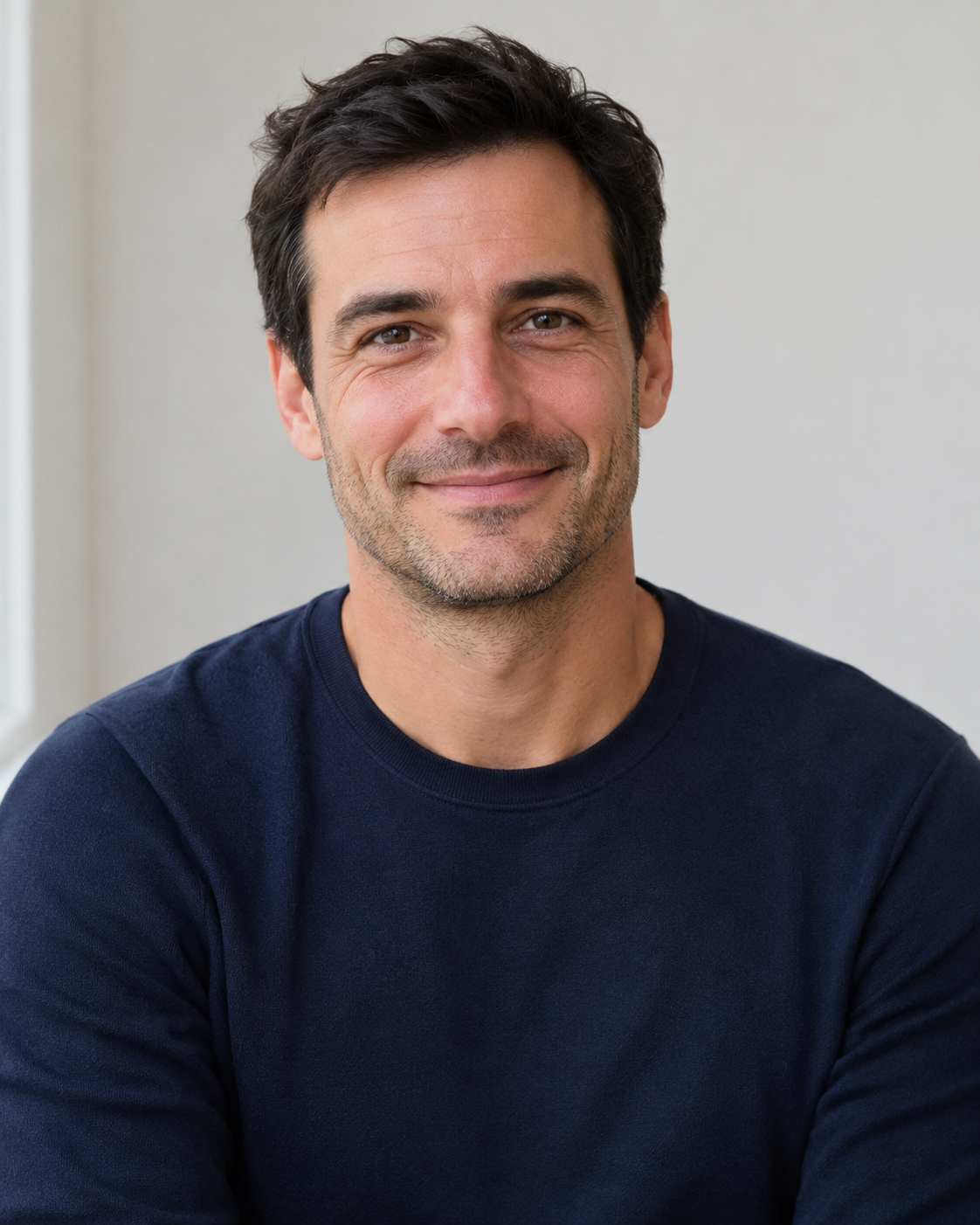
FlowPix has no tool that makes headshots. What it has is Quick Edit, which takes a picture you already have and redraws it from a description. To get a professional headshot from a casual portrait you describe the clothes and the background, and you get back a new picture of the same portrait in a blazer on a studio background.
That is quick and good for trying things, and it has one cost: the whole picture is drawn again, not only the clothes and the background. This page shows, on two invented portraits, what that looked like.
The result is a redrawing of the portrait, so it is a picture to compare with your photo and not a studio photograph. Use it when a drawn picture is acceptable, and check where you will use it. It does not make a studio photograph: the result is a drawn picture, and it can differ from your photo in small ways, such as how the hair falls.
How to try it in FlowPix
Put the portrait on the canvas, select it and open Quick Edit in the picture toolbar. Describe the clothes and the background you want and ask for the face and hair to stay the same, then press Run. The button shows the credits the run will cost before you press it.
The result comes back as a new picture and your original is not changed. If it is not what you wanted, change the description and run it again. Only upload photos of people you have the right to edit.
There is no selection to make and no template to choose. Quick Edit reads your description and the whole picture, so you say what you want in words and what must stay the same. If you want a different background colour or a different kind of clothes, say so in the description and keep the rest of the sentence the same, so that you can see what that change did.
The prompt we used
We tried one edit, one run each, on two invented portraits, a woman and a man, that we generated ourselves. The description is below, so you can copy it and change the details.
For both portraits: "Turn this into a professional corporate headshot: a dark blazer over a white shirt and a soft grey studio background. Keep the face and hair exactly the same."
We asked for a dark blazer over a white shirt and a soft grey studio background. To try other clothes or another background, change those words. Keep the part about the face and hair, because it is what asks the model to stay close to your photo.
What we saw
Both portraits came back in a dark blazer over a white shirt on a soft grey studio background, as asked. At first glance both were still the same person, with the same expression. The woman's hair fell a little differently from the original. We judged this by eye, on two portraits, because no face recognition tool was used. The blazer, the shirt and the background were drawn new, and nothing of the original clothes was kept.
But the pictures were redrawn. The table shows, on a scale from 0 to 255, how much each part of the picture differed from the original. The background at the sides and the clothes changed a lot, which is what we asked for, and the face changed less than that, but it was drawn again, not copied. The results are about a thousand pixels wide, whatever the size of the original.
The numbers are not the same for the two portraits: the man's face differed more from the original than the woman's did. So no single figure says how close a result will be. It changes from run to run and from picture to picture.
| Portrait | Face | Background at the sides | Clothes |
|---|---|---|---|
| Woman, professional headshot | 9 | 38 | 117 |
| Man, professional headshot | 17 | 56 | 44 |
Run it a few times and pick one
Because each run is a new drawing, the face can come out a little closer to your photo in one run than in another. We ran each portrait once, so we cannot say how much they vary, but it is a reason to run the same description a few times and keep the result that looks most like you.
Each run is a new picture and the earlier ones stay as they were, so you can compare them side by side and keep the best of them. Change only a few words between the runs, so that you can tell which words made the difference.
What to check before you use it
Put the result next to the original and look at the face first: the eyes, the mouth and the shape of the face. Then look at the hair, the collar and the edges of the blazer. If something is off, run it again with a more exact description.
Keep the original and work on a copy. Do not use the result where the picture has to match a real person, such as an ID photo, a document or evidence.
Some places that ask for a profile picture expect a real photograph of you, so check what they accept before you upload a drawn picture. Keep every result and the original in one place, so that you can compare them again later. A different background colour or a different kind of clothes is only a change of words, and the earlier results stay as they are.