What a T-shirt mockup is for
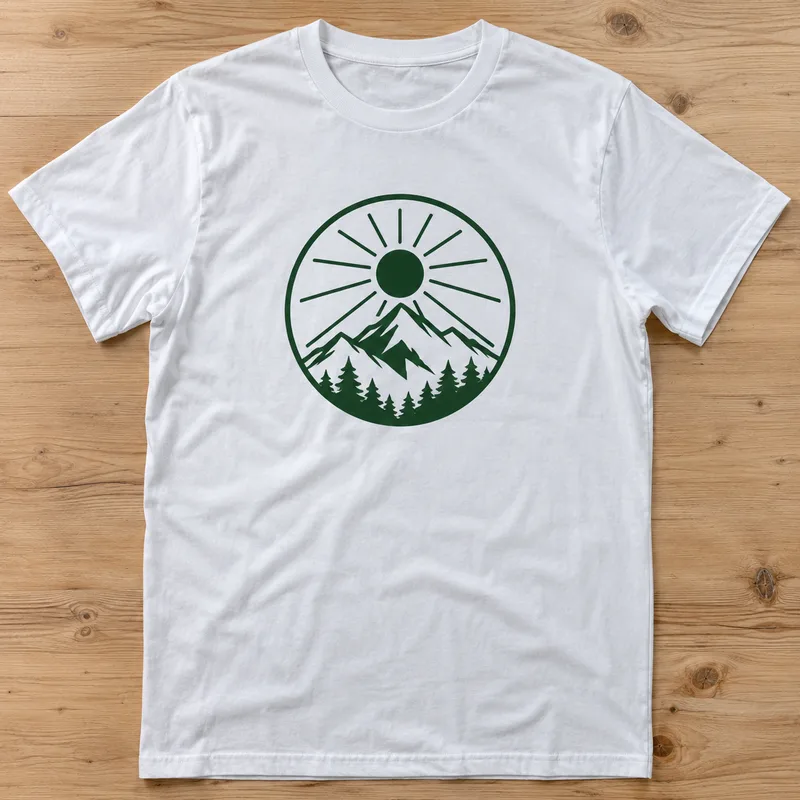
A T-shirt mockup is a picture of a shirt that shows how a design would look printed on it. It can be a flat lay, a shirt on a hanger or a person wearing it, and it lets you judge the print, show it to a client or put it on a shop page before a single shirt is printed. Many people also type tshirt mockup into a search box when they simply want a clean picture of a shirt to build a presentation around. Print-on-demand sellers, small clothing brands, bands, clubs, event organisers and graphic designers all use mockups for the same reason: to see and show a design on a garment while it is still an idea.
A useful T-shirt mockup answers a few questions at a glance. Does the colour of the shirt suit the design? Is the print the right size on the chest? Does the picture look like a real garment with real folds? This page explains how to get such a picture in FlowPix, and where the limits are.
How to make a T-shirt mockup with FlowPix
Open the app and describe the shirt the way you would brief a photographer: the colour, the cut, the fabric, the background and who or what wears it. Then attach your design as a reference picture and say where it goes, for example in the middle of the chest. FlowPix generates a photo of the shirt with a version of your design on it. There is no mockup template to choose and no file to drag onto a fixed shape; you say what you want to see and the image generator draws it.
Treat the first result as a draft. Look at it closely and ask for changes in plain words: make the print a little smaller, move it higher on the chest, make the shirt a shade lighter, put a plain wall behind it. Each request produces a new picture, so you can keep what works and change one thing at a time.
Describing the shirt: colour, cut, fabric and background
Be specific about the things a picture cannot guess. Name the colour with an ordinary colour word such as white, black, navy, sand or forest green. Say what the cut is: a classic crew neck, a V-neck, a boxy oversized fit, a fitted style, long sleeves or short sleeves. Name the fabric in plain words, such as thick cotton, soft jersey or a washed vintage look, because the fabric decides how the cloth folds and how the print sits on it.
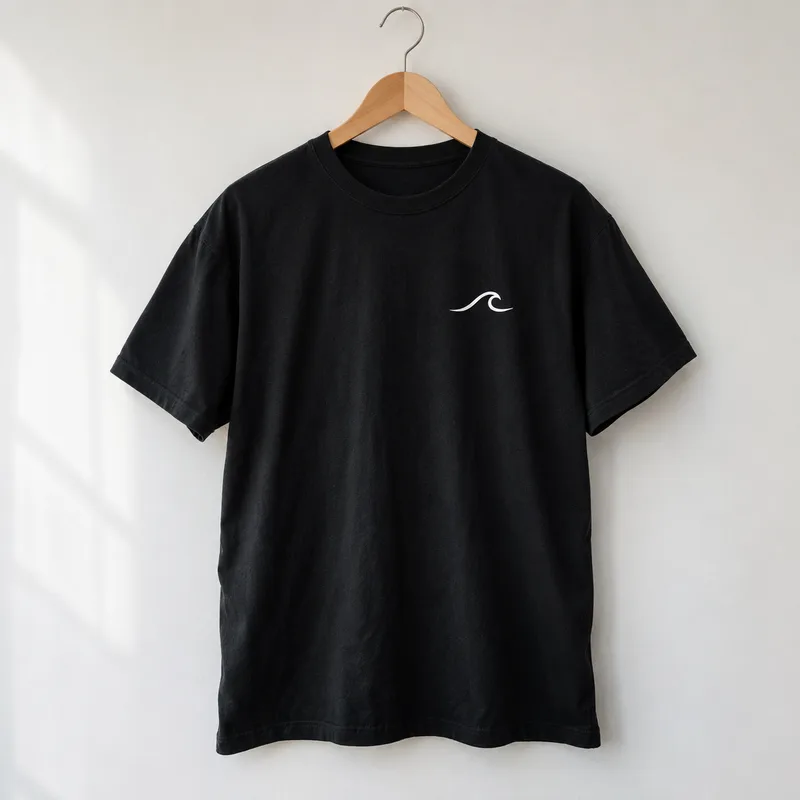
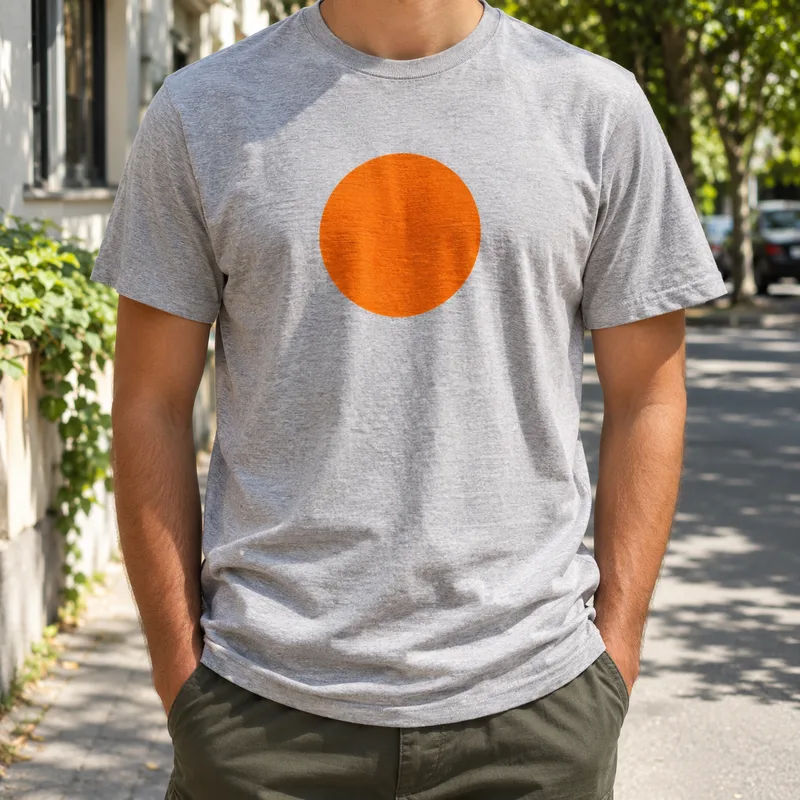
Then describe the background and who or what wears the shirt. A flat lay on a pale grey surface, a wooden hanger against a plain wall, a folded stack on a shelf and a person standing in a bright street are all ordinary requests. If a person wears it, say roughly what kind of person, pose and light you want. Always write where the print goes and about how large it is: centred on the chest, small on the left side of the chest, or large across the whole front.
Front view, back view and a person wearing it
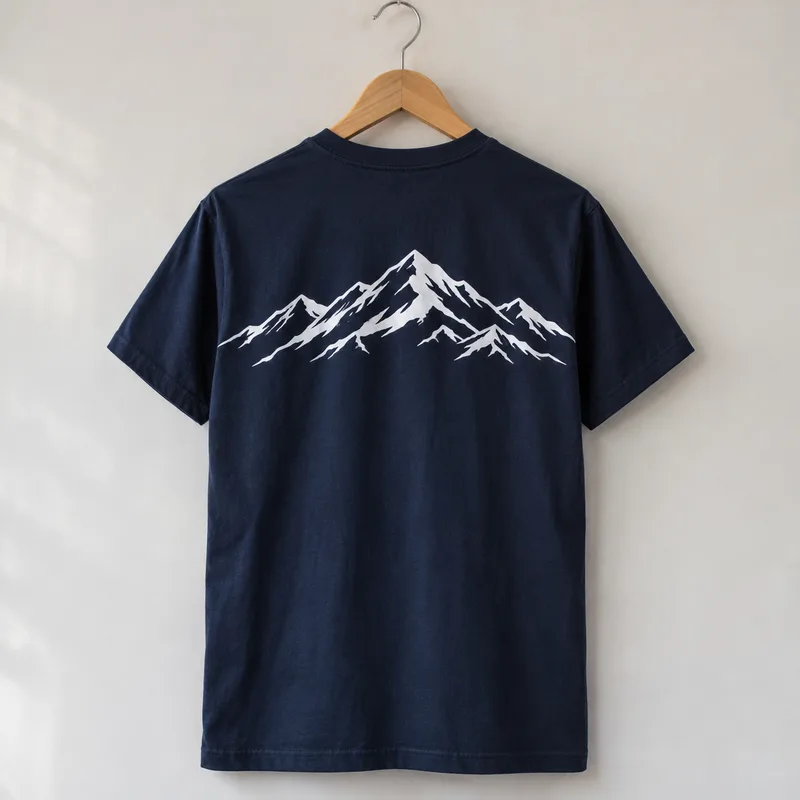
A shop page usually needs more than one angle, and each angle is a separate request. Ask for the front view first and keep your design attached. Then ask for the back view as its own message, and say what is on the back: the same design, a different one, a small line near the neck, or nothing at all. Because every picture is drawn again, the shirt in the back view is a new drawing of a similar shirt, not the same garment turned around, so name the same colour, cut and fabric in both requests.
Do the same for a person wearing the shirt. Ask for a person in a bright street, a studio or a park, with the design visible on the chest, in a request of its own. You can also ask for other scenes: a flat lay seen from above, a folded shirt, a shirt on a hanger or a shirt held up in front of a plain wall. Keep the wording for the light and the background the same across the set if you want the pictures to feel like one shoot.
Changing the colour, including a black T-shirt mockup
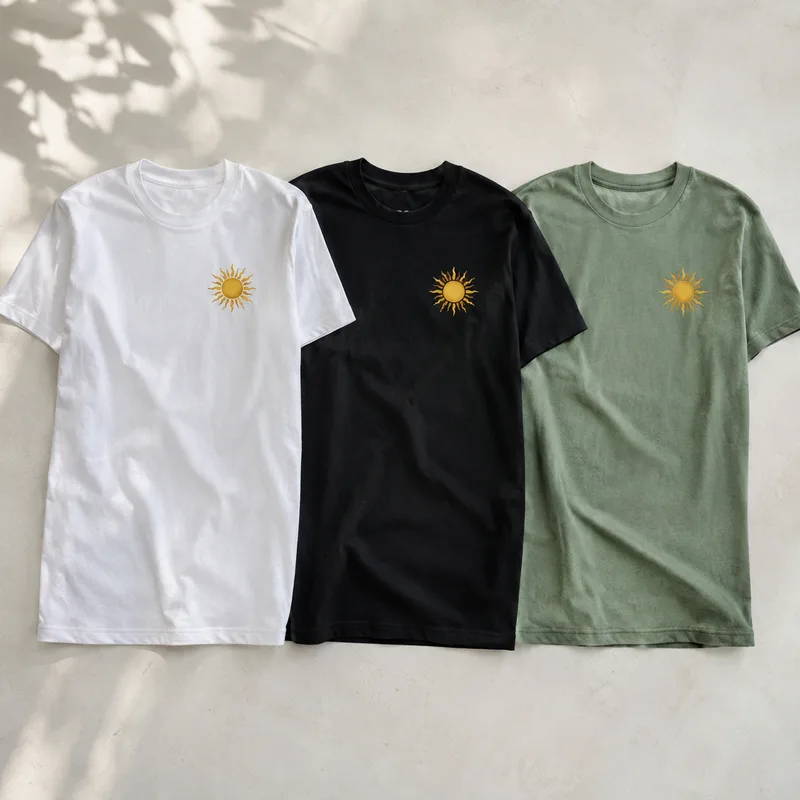
To see the same design on another shirt, ask again with a new colour. Make a picture you like, then say: the same shirt and the same scene, but in navy. You can go through a whole set of colours this way and compare them side by side. A black T-shirt mockup is one of the most common requests, and it is worth a few extra words, because a dark shirt changes how a design looks. Say whether the print is light on the dark cloth, and name the colours of the print so they do not drift.
Dark shirts and light shirts behave differently with the same artwork. A dark logo can nearly disappear on a black shirt, and a pale print can look washed out on a white one. Making both versions is a quick way to find out before you decide which colours to offer. Remember that each colour is a new generated picture, so the folds, the shadows and the exact shade can differ a little from one version to the next.
Tips for a clean mockup and what to check
A few habits give cleaner pictures. Keep the background simple: a plain wall, a pale surface or a single colour. State the placement of the print on the chest in words. Ask for no extra text, because generated lettering is the least reliable part of any picture, and a shirt with invented words on it can ruin a presentation. Describe one scene per request instead of several. A design with clear shapes and large lettering will usually be followed more closely than a very detailed one.
Then check the result the way a customer would. The image generator redraws the design: the print can shift, shapes can be simplified, colours can change a little and small text can change or break. Compare the picture with your design file. If something is off, ask again with a clearer description, or fix the design file, for example by making the lettering larger and the shapes simpler, and attach it again. Check the shirt as well: the neckline, the sleeves, the seams and the place where the cloth meets the background.
What a T-shirt mockup is not, and where it is used
A mockup is for presenting a design. It is not a print-ready file and it is not a photo of a real shirt that you own. Keep your original artwork for the printer and ask your print shop for their sizes, colour rules and file formats. Many marketplaces require real product photos, so read the rules of the place where you sell before you use a generated picture as a listing photo. Template tools that paste a file onto a fixed photograph keep the artwork exactly as it is; FlowPix generates a new picture, which gives you new angles, colours and scenes without a shoot but redraws the print.
Within those limits mockups are useful in many places: a pre-order page for a new design, a pitch to a client, a mood board for a clothing line, a post announcing a merch drop, a proposal for a team or event shirt. Show the design in a few colours, with a front view, a back view and a person wearing it, say plainly that these are mockups, and keep the real samples for the moment the shirts are printed.