

What photo to pixel art means
Pixel art is a picture made of visible square pixels, drawn with a small number of colors, in the style of old video games. People who search for photo to pixel art usually have a photo they like, such as a portrait, a pet or a view, and want it to look as if it came from a retro game. They do not want to draw every pixel by hand.
There are two quite different ways to get there. One is to redraw the picture in a pixel-art style, as an artist or an image model would. The other is to cut the picture into an even grid, give each square the average color of what it covers, and then limit the picture to a small palette. This page is about the second way, which is what FlowPix does in the Adjust panel, and about what it does and does not give you.
How to turn a photo into pixel art in FlowPix
Put your photo on the canvas, select the picture and open Adjust. The two sliders are under Effects. Pixel size sets how many squares run along the shorter side of the picture, and Colors sets the largest number of colors the picture may have. You see the result on the canvas as you move them, and both are off at zero.
When you like it, press Save as new image. FlowPix works on the pixels of the original picture, saves the result as a new picture beside it and leaves your photo as it was. There is no model in this.
What the two sliders do
Pixel size cuts the picture into an even grid. You choose the number of squares along the shorter side, from 8 for a very coarse picture to 256 for a fine one, and each square takes the average color of the part of the picture it covers. Because the size is a share of the picture and not a number of pixels, the same setting gives the same grid on a small photo and on a large one.
Colors limits the palette, from 2 to 64 colors. FlowPix picks the palette from the colors the picture already has, in a way that keeps the most common and most different ones, and every square takes the nearest of them. You choose how many colors there are, not which ones.
The 8-bit look
People search for "8-bit" and mean two different things. One is the look of old games: big visible squares and very few colors. The other is a file format, 8-bit color, which holds up to 256 colors in a fixed palette. This tool gives you the first. Colors goes up to 64, so FlowPix does not make a 256-color indexed file, and you cannot pick the palette of a particular console: you choose how many colors there are, not which ones.
For the game look, use few squares and few colors. Two settings to start from are about 32 squares across with 8 colors for a bold, chunky look, and 64 squares across with 16 colors for more detail. Pixel size sets the squares and shows the number it is set to, and Colors sets the palette.
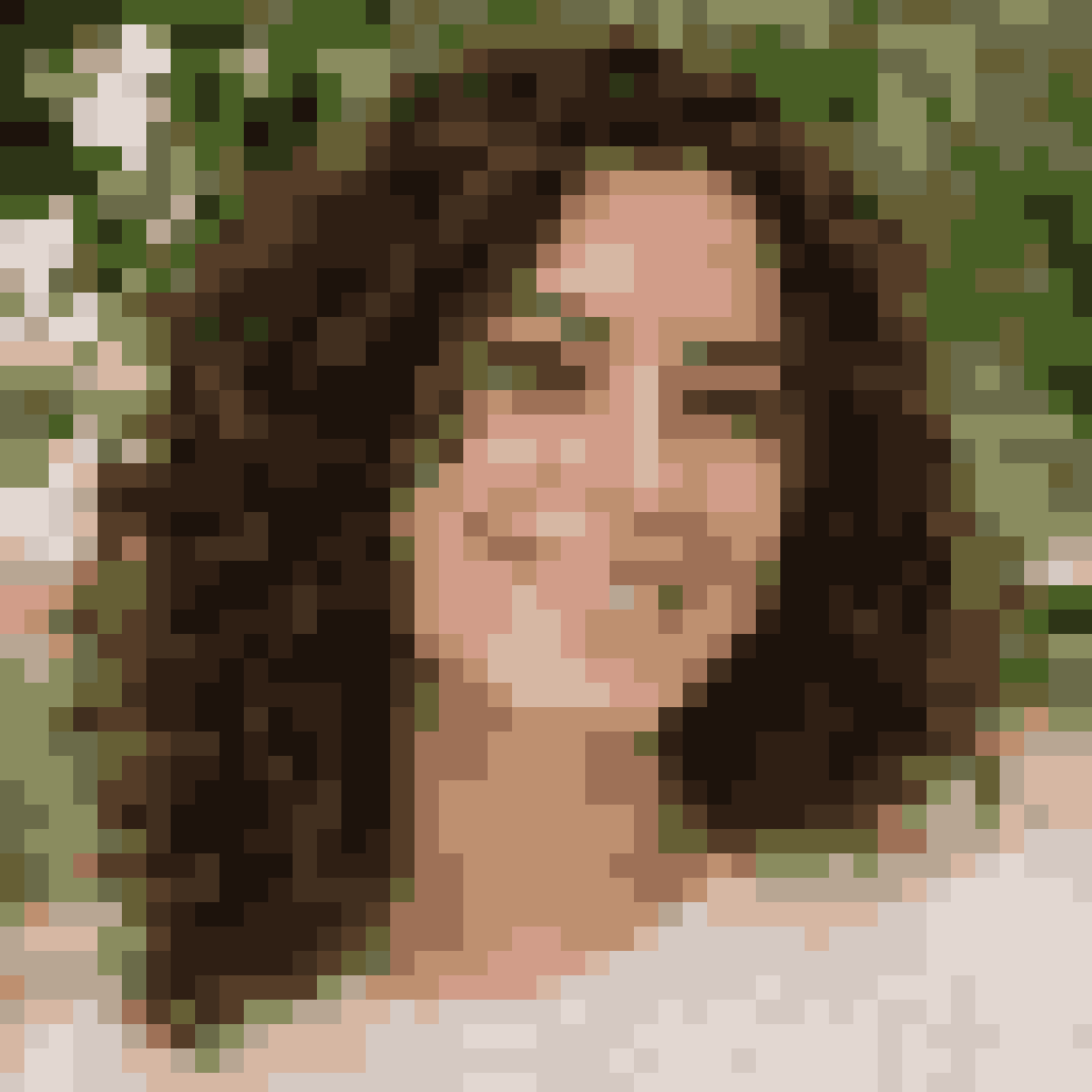
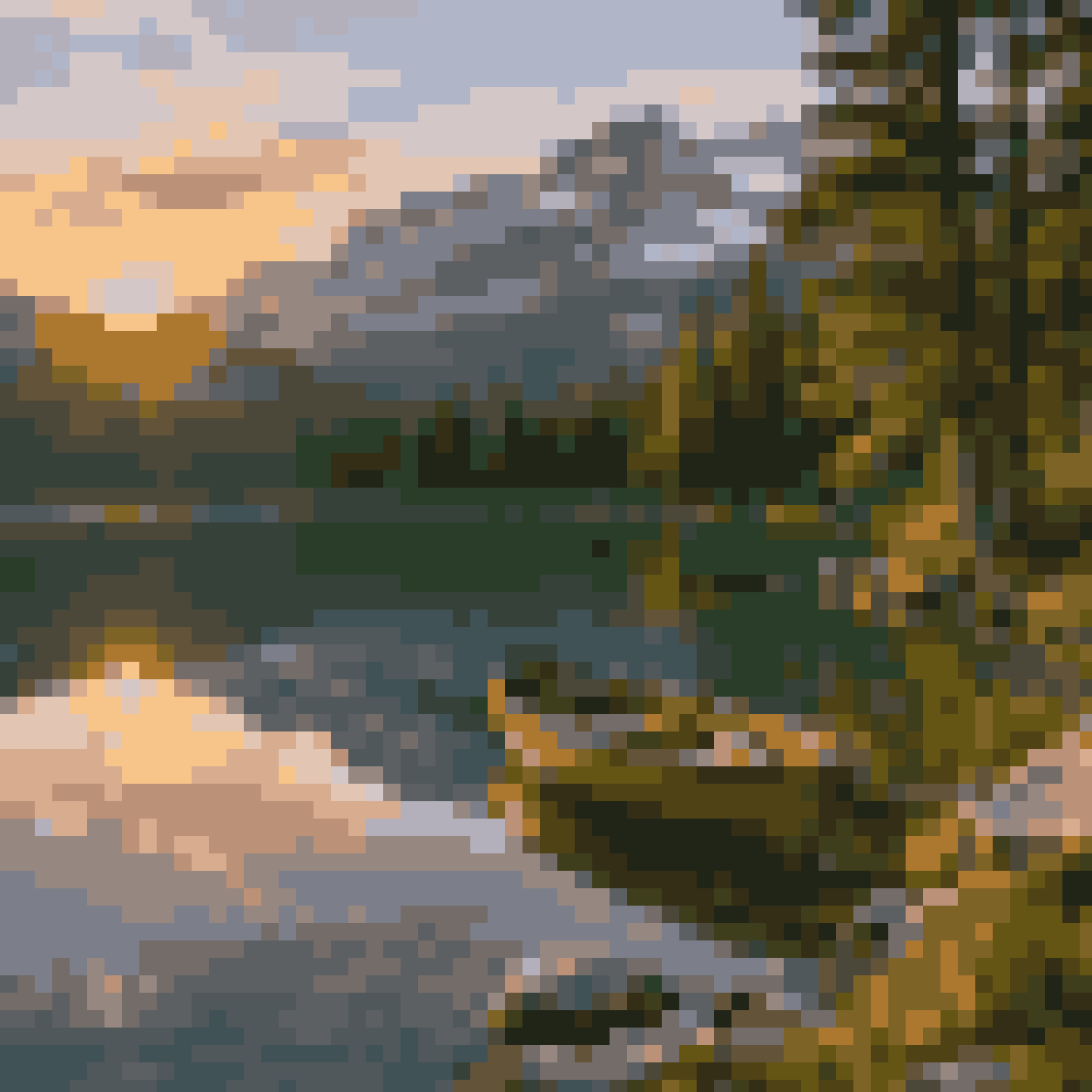
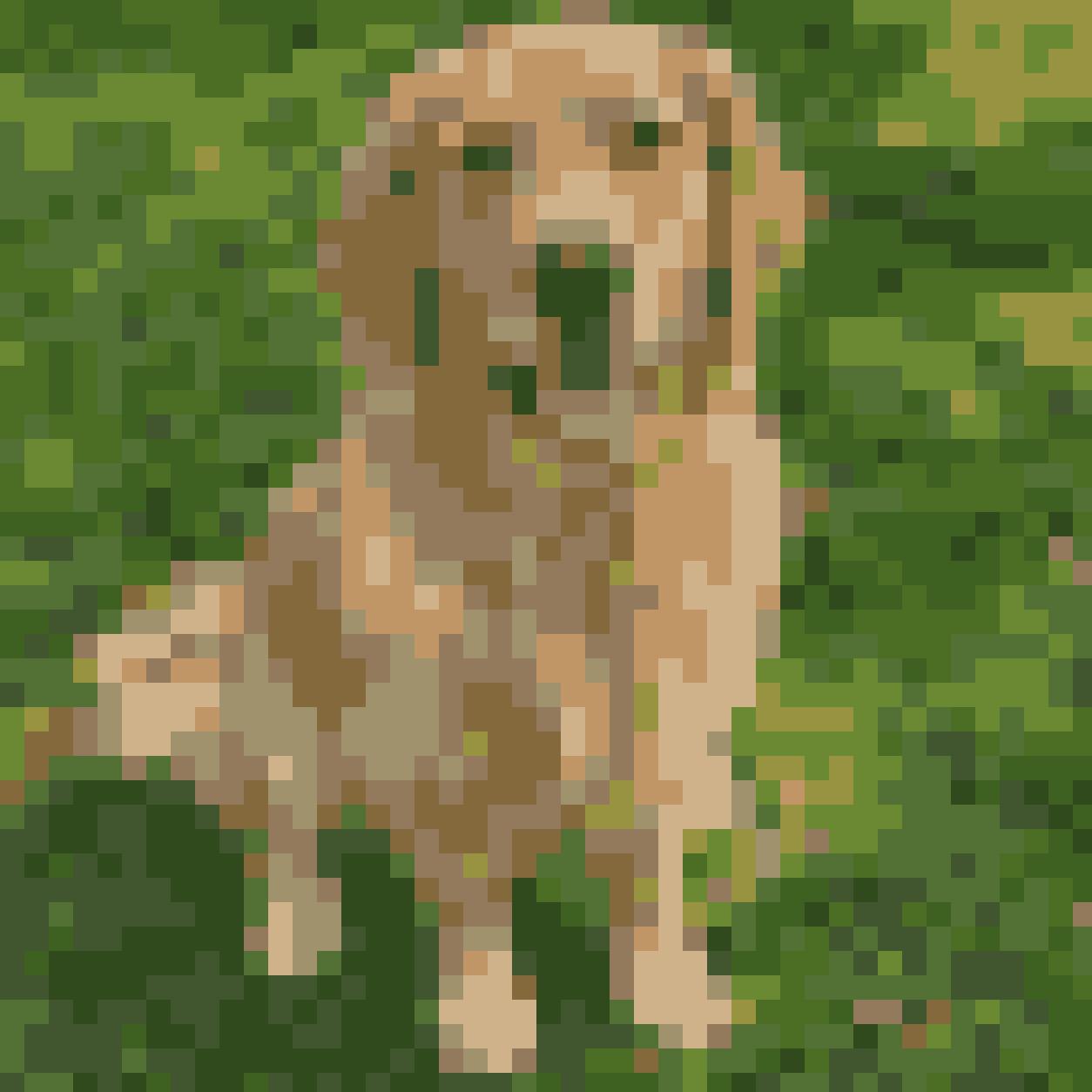
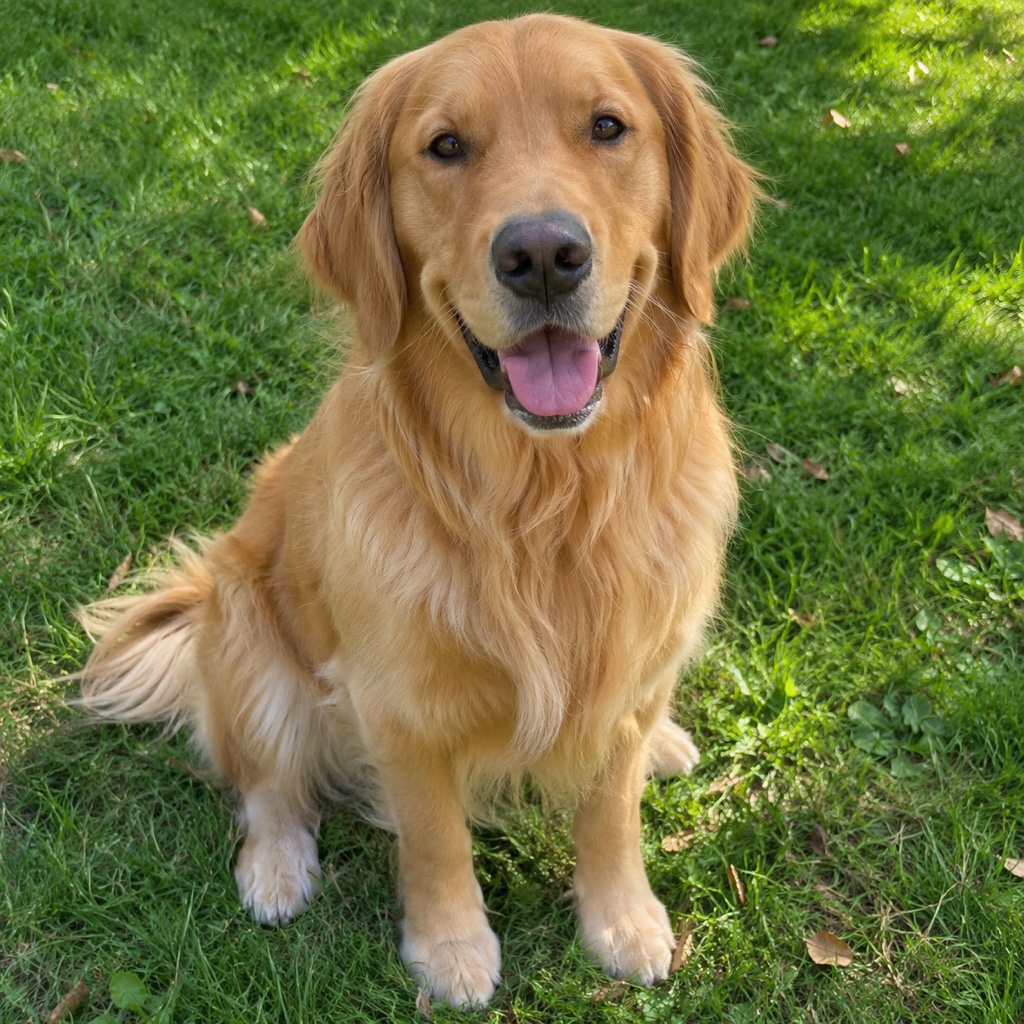
We tried both settings on our three pictures and measured the saved files. In every case the grid was exact and the picture had exactly 8 or 16 colors. At 32 squares and 8 colors the woman's face is a handful of blocks and the lake turns into a muted abstract, while the dog is still clearly a dog. At 64 squares and 16 colors the faces and the boat on the lake stay recognizable. A picture with one clear subject works best.
What we saw in our tests
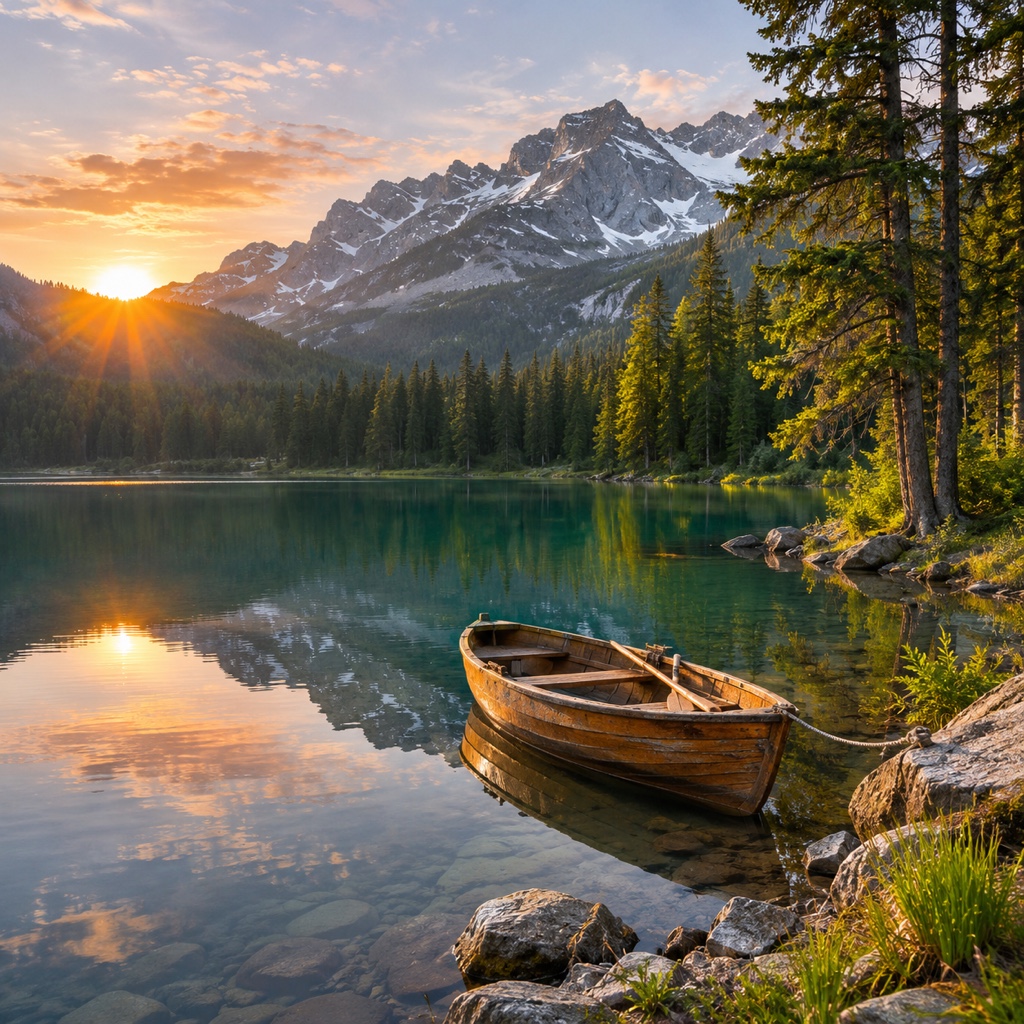
We tried it on three pictures: a portrait of a woman, a mountain lake at sunrise and a golden retriever on a lawn. The pictures are ones we generated ourselves, not photos of real people or pets. The portrait and the dog use 45 squares across, with 16 and 12 colors, and the lake uses 64 squares across with 24 colors. The sliders on this page show the three results as they were saved, not edited afterwards.
We then measured the saved pictures pixel by pixel. In every setting that asked for a grid, no pixel was off the grid. In every setting that asked for a palette, the picture had no more colors than we set. We tried eight settings, from 6-pixel squares with 32 colors to 157-pixel squares with 2 colors, with a brighter and a darker picture too, and all of them held.
What it does not do
It does not redraw. A square is an average, so the result looks like a mosaic of the photo and not like hand-made pixel art. Fine detail disappears: in our dog picture at 45 squares the eyes and the nose turn into a few unclear blocks, and a small object can vanish on a coarse grid. With few colors the palette can look muted, and there is no dithering and no outline.
You cannot choose the colors, only how many there are. The saved picture also keeps the size of the original, so each square is many pixels wide: it is a large picture of pixel art and not a small sprite file, and we did not test scaling it down. FlowPix has no tile or sprite sheet export.
The other way: a redrawn pixel-art style
If you would rather have the photo redrawn in a pixel-art style, Quick Edit can do that. You describe the look and it makes a new picture. In our earlier tests of it the result looked like pixel art at a glance, but the squares were not one size or on one exact grid, and the picture used many shades. It is a different tool for a different result: a drawing in a pixel style, not an exact grid.
Use the Adjust panel when you want the grid and the palette to be exact, and Quick Edit when you want a redrawn picture and do not mind that it is not exact.
Getting a better result
Start from a clear photo with one subject and a plain background, and crop it so that the subject fills most of the frame. On a coarse grid a small subject is only a few squares, and a face turns into a few blurry blocks. A tight crop gives every part of the subject more squares.
Try a few settings. More squares keep more detail, fewer squares give a bolder look, and fewer colors flatten the picture. Save the ones you like as new pictures and compare them with the photo, and use pictures you have the right to use.