
Can You Unpixelate an Image? What Pixelating Takes Away
Updated 2026-11-18
Short answer: no, not from the squares alone. When a picture is pixelated, every square keeps one color, the average of the pixels it covered, and the detail inside it is thrown away. Nothing left in the file says what that detail was.
That is a strong claim, so this guide shows the measurements behind it. We pixelated three pictures and a line of text with FlowPix's own Pixel size control, counted what was left, and ran one test that shows why the detail cannot be worked out again. At the end: what you can do instead, and how to pixelate on purpose.
How we measured. We took three pictures made in FlowPix earlier (a portrait, a lake with a rowing boat, a dog), each 1,024 × 1,024 pixels, and drew one line of text (4071 8836) in the browser as a strip of 1,024 × 256 pixels. We ran each one through the Pixel size control of the Adjust panel, the same code that Save as new image uses, in a real browser (Chromium), at five grid sizes: 128, 64, 32, 16 and 8 squares along the shorter side. Everything ran on this computer. No model was used and nothing was uploaded; no picture was enlarged or restored by any tool except in the one section that says so.
What a pixelated picture keeps
Pixelating cuts the picture into an even grid and gives every square the average color of the pixels inside it. At 32 squares along the shorter side, a 1,024 × 1,024 picture becomes 1,024 squares of 32 × 32 pixels each. That is one color for every 1,024 pixels it had.
The table shows the portrait at all five grids. The picture keeps its size in pixels, but the number of different colors falls from 111,996 to about the number of squares, and the average difference from the original grows as the squares get bigger.


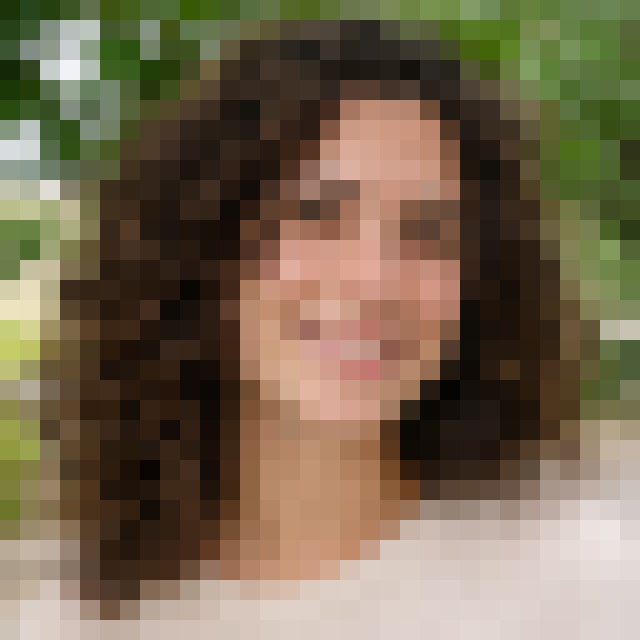
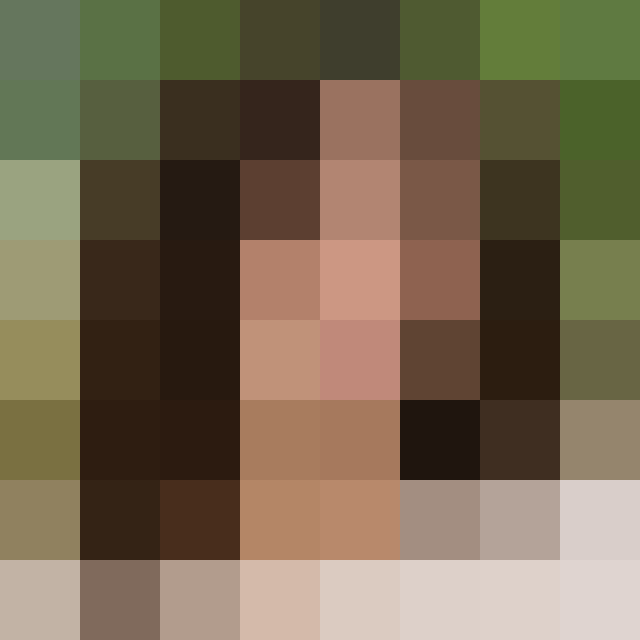
| Squares along the shorter side | Square size | Squares in all | Different colors left | Average difference from the original |
|---|---|---|---|---|
| 128 | 8 × 8 px | 16,384 | 12,899 | 8.4 |
| 64 | 16 × 16 px | 4,096 | 3,682 | 11.9 |
| 32 | 32 × 32 px | 1,024 | 996 | 16.3 |
| 16 | 64 × 64 px | 256 | 254 | 22.2 |
| 8 | 128 × 128 px | 64 | 64 | 29.8 |
The last column is the average difference per color channel, on a scale of 0 to 255, between each pixel of the original and the same pixel after pixelating. The lake and the dog behave the same way: at 32 squares they keep 1,017 and 1,019 colors, and the average difference is 17.6 and 18.6.
Different pictures, the same squares
Here is the test that shows why the detail cannot be worked out. Take a picture and, inside every square of the grid, shuffle its pixels into a random order. Each square keeps exactly the same pixels, so its average color is exactly the same, but the picture is now a different one: it looks as if noise had been sprinkled over it.
We did this for all four pictures at all five grids, 20 pairs in all, and then pixelated the original and its shuffled copy with the same grid. In every one of the 20 pairs, 0 pixels differed between the two pixelated results.
The shuffled copies are visibly different pictures. At 32 squares the average difference between the portrait and its shuffled copy is 21.8, the lake's is 23.5 and the dog's is 25.6. So one set of squares comes both from the original and from a picture that looks quite different, and the squares do not say which of them it was.
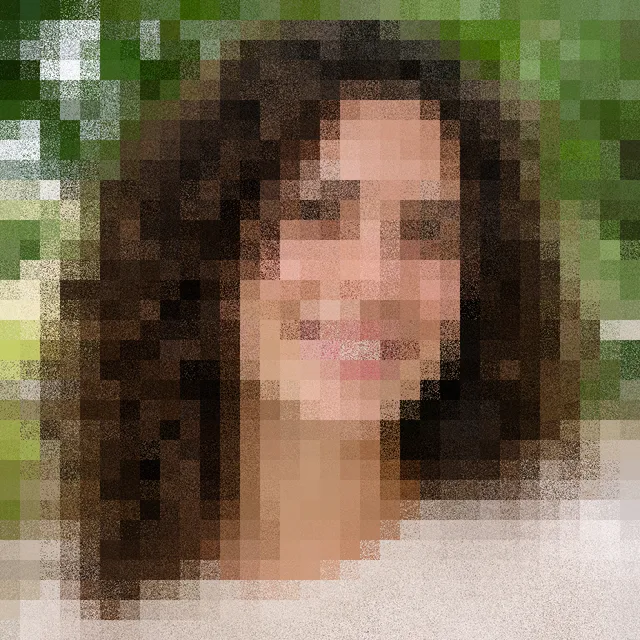
This is the whole reason there is no way back. A program that gives you a sharp face from these squares has had to choose one of the many pictures that fit them. It may look convincing and still be a different face.
Smoothing it makes it softer, not sharper
Enlarging a pixelated picture with smooth scaling blends the squares into each other, and it looks better. We tried it: one value from each square, enlarged back to 1,024 × 1,024 pixels with the browser's own smooth scaling. This is the only step in the guide that enlarges anything, and it adds nothing but blending.
The average difference from the original does fall a little. For the portrait it goes from 8.4 to 7.5 at 128 squares, from 16.3 to 15.4 at 32 squares and from 29.8 to 28.8 at 8 squares. The detail does not come back: the average step in brightness between neighboring pixels is 9.9 in the original portrait and 1.1 after smoothing the 32-square version.

Pixelated text: when you can still read it
Text is the case people ask about most. In our strip the digits are much taller than the squares at the finer grids, and then you can read them without any tool: with 8 and 16 pixel squares the line 4071 8836 is still plainly legible. Nothing was recovered there. It was never hidden.
With 32 pixel squares the same line is a row of gray blocks, and we could no longer read it. The shuffle test above was run on this strip as well, and its pixelated result also came out identical.
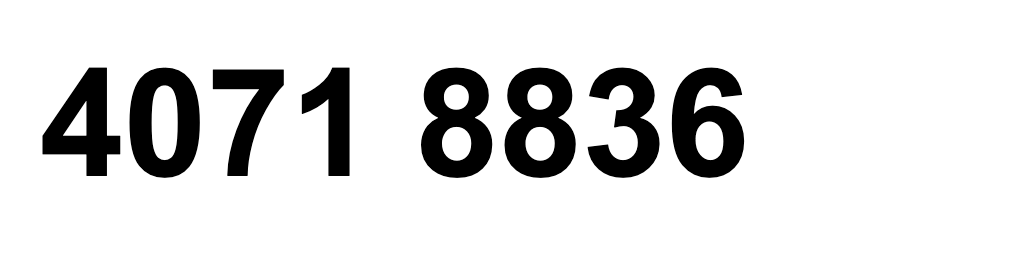

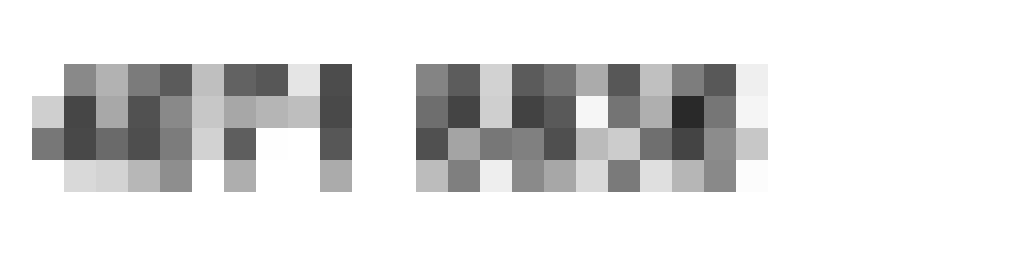
So what matters is the size of the squares next to the size of the letters. Squares much smaller than the letters hide little; here, squares of 32 pixels hid the line.
The Colors control loses detail the same way
Colors does not cut the picture into squares. It replaces every color with the nearest one of a small set. We asked for 16 and then for 4 colors on the three photos, with no pixelating. Exactly 16 and exactly 4 colors were left in all three. The average difference from the original was 8.0, 10.1 and 9.1 at 16 colors (portrait, lake, dog) and 16.6, 19.5 and 16.4 at 4 colors. Two different colors that were mapped to the same one cannot be told apart again.
What to do instead
If you need the picture back, these are the things that work, in this order.
- Go back to the original. If you pixelated a copy, the sharp file is somewhere: a backup, the camera roll, the message you sent it from, the version history of the app you used.
- If you only have the pixelated file, treat it as a low-resolution picture. Enlarging it with smooth scaling makes it easier on the eyes, as the measurements above show. It does not bring the detail back.
- If a tool offers to unpixelate it, read what it gives you as a new, plausible picture, not as the original. The shuffle test shows that many pictures fit the same squares. We did not run any such tool for this guide.
Pixelating on purpose in FlowPix
If what you want is the opposite, a picture that cannot be read back, this is how it is done in FlowPix.
- Put the picture on the canvas, select it and open Adjust.
- Under Effects, move Pixel size. It runs from 256 squares along the shorter side (fine) down to 8 (coarse). Colors, just below it, sets the largest number of colors.
- Press Save as new image. You get a PNG at the size of your picture in pixels, and your original stays as it was.
- To hide something such as a face or a number, use a coarse grid and look at the result at the size you will share it. A plain bar over the area hides it more surely, because a bar keeps nothing of what was under it.
Questions about unpixelating
Can you unpixelate an image?
Not from the squares alone. A pixelated picture keeps one color per square, the average of what was there, and the detail inside is gone. We shuffled the pixels inside every square of four pictures at five grids, and the pixelated result was identical in all 20 pairs, so the squares cannot tell the original from a very different picture. If you have the original file, use that.
Why do some unpixelate tools show a sharp picture?
A sharp result made from squares has to be a guess: one of the many pictures that fit the same squares. It can look convincing and still be wrong. We did not run any such tool for this guide, so we cannot say how any of them behaves. We can say what the squares allow.
Can I make a pixelated picture look better?
You can make it softer. Enlarging with smooth scaling blends the squares. For the portrait it lowered the average difference from the original by about one level on a scale of 0 to 255, and it left the average step between neighboring pixels at about a tenth of the original's.
Why can I still read some pixelated text?
Because the squares are small next to the letters. In our test strip the text was readable with 8 and 16 pixel squares and not with 32 pixel squares. If you can read it, nothing was recovered: it was never hidden.
How do I pixelate a picture in FlowPix?
Put the picture on the canvas, select it and open Adjust. Under Effects, move Pixel size to choose how many squares run across the picture, and Colors to set the largest number of colors. Press Save as new image to get a PNG. Your original stays as it was.
Is pixelating a safe way to hide a face or a number?
It depends on the size of the squares next to what you hide, and we can only speak for the squares we measured. Coarse squares leave less to read, as the text test shows, and a plain bar leaves nothing. Check the result at the size you will share it, and keep the original somewhere safe: pixelating a copy does not change the original.