What a family crest generator does here
FlowPix does not hold a list of real family arms. It draws a picture from your description, and a crest made this way is an illustration: a shield, an animal, some leaves and a banner with words on it, in the style you ask for. It is not a registered coat of arms, and it is not a record of a real family's history.
What the canvas adds is the steps after the drawing. You can turn the coloured crest into a one-colour engraving, change the words on the banner, take the background away and make the file larger, each with its own tool on the canvas, and each result is a picture you can look at before you go on.
If you already have a crest, a sketch or a family logo, you can put it on the canvas and start from the step you need: a one-colour version, a new motto, a transparent file or a larger one. The first step, the drawing, is only needed when you have nothing to start from.
How we made one, step by step
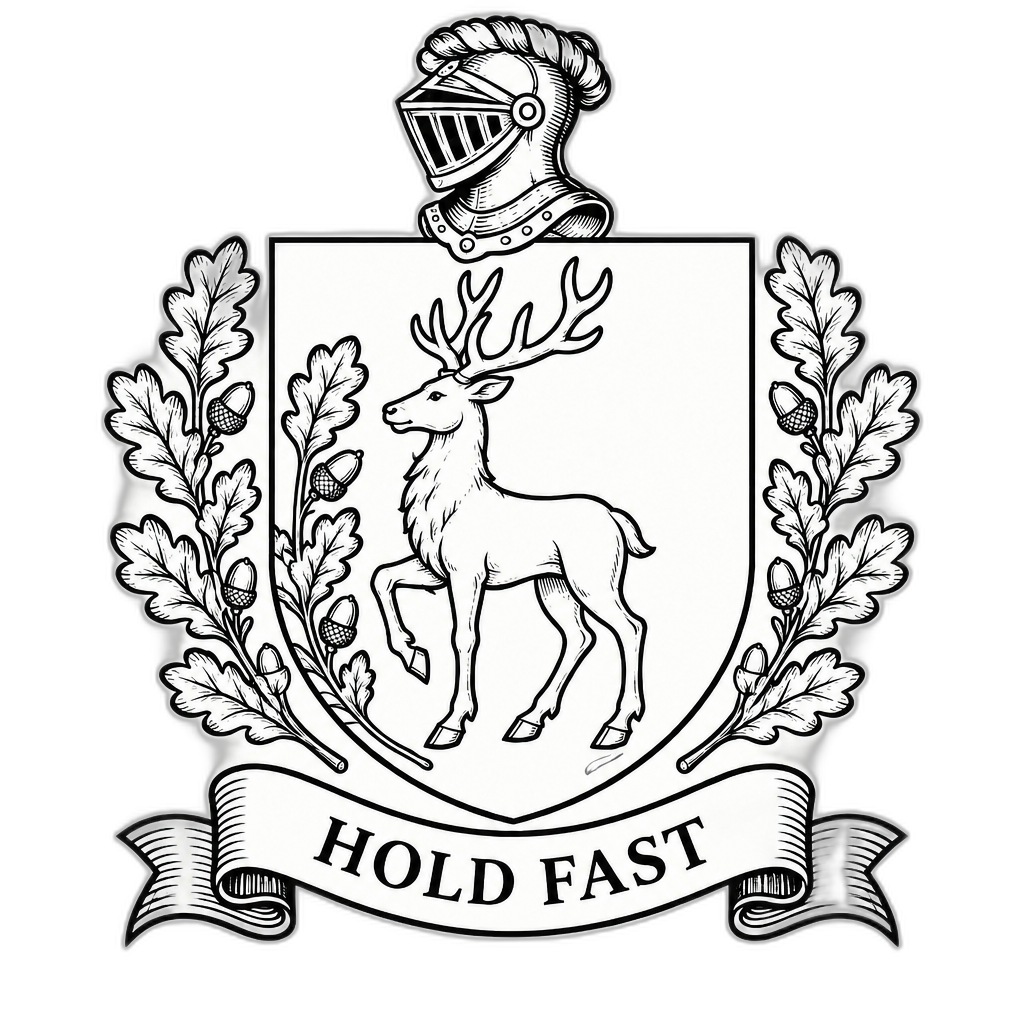
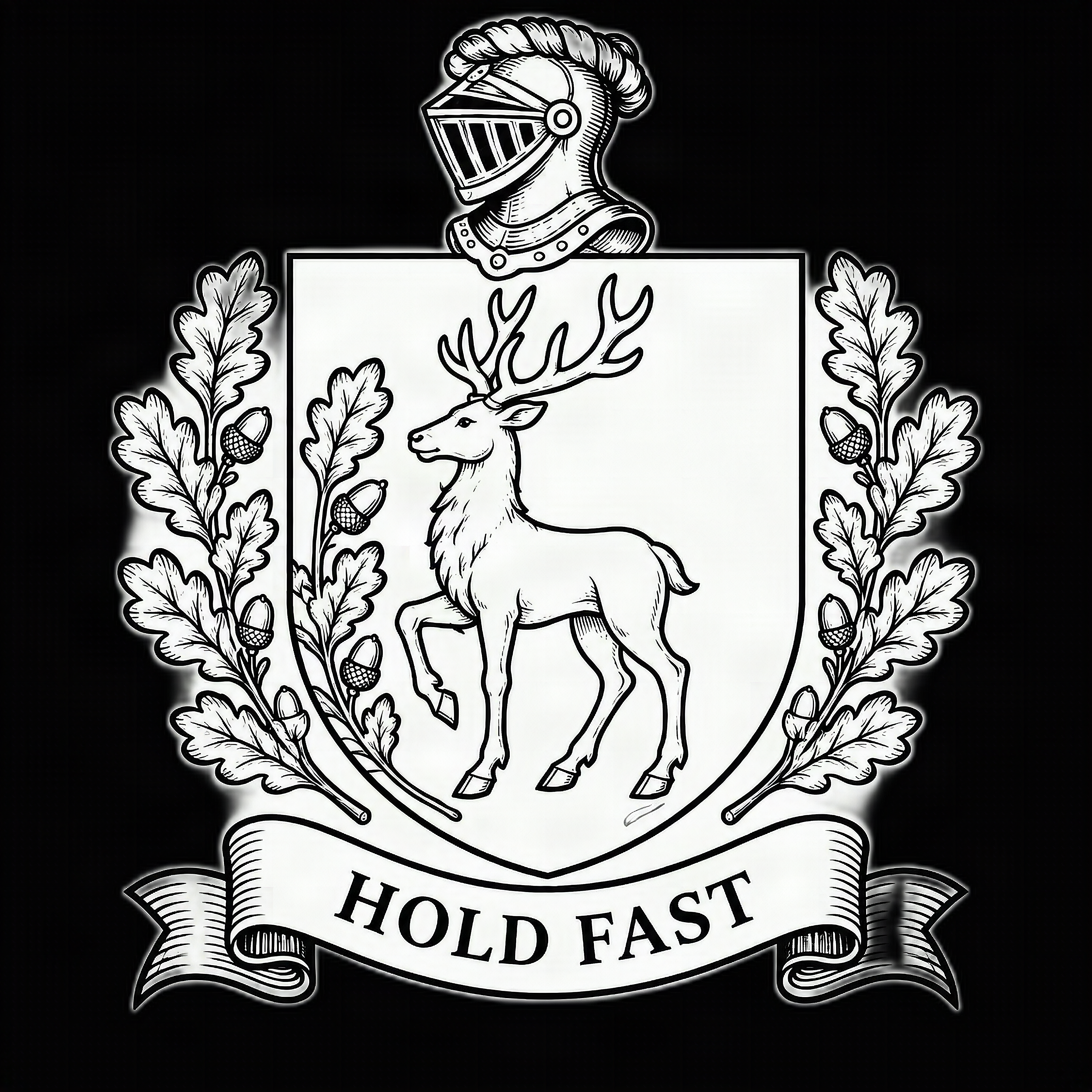
We invented a surname, Harrowmere, and made one crest and took it through five steps: drawing it, turning it into a one-colour engraving with Quick Edit, changing the motto with Edit Text, taking the background away with Remove BG and making the file larger with Upscale. Each step was one run, on the result of the step before. The five results are pictures we generated ourselves, as they came back and not edited afterwards. The four sliders on this page show them.
The steps went in that order because each one needs the picture the one before it made. If you start from a crest you already have, you can start at any of them.
The prompts we used
These are the descriptions the tools received, so you can copy them and change the details.
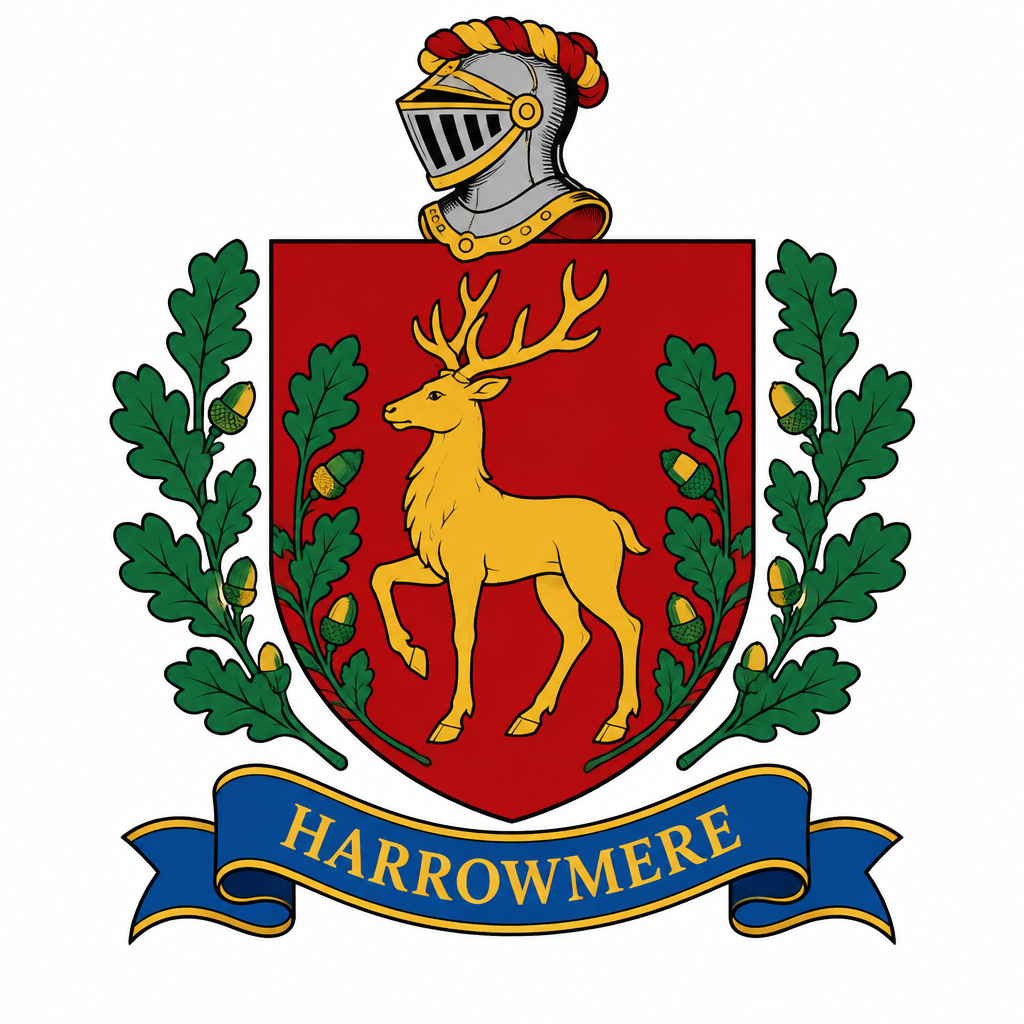
The crest, as a text description in the chat: "A coat of arms of the fictional Harrowmere family, in full colour: a red shield with a gold stag standing between two green oak branches, a blue ribbon banner below the shield reading HARROWMERE in capital letters, a small helmet crest above, flat heraldic illustration, centred on a plain white background."
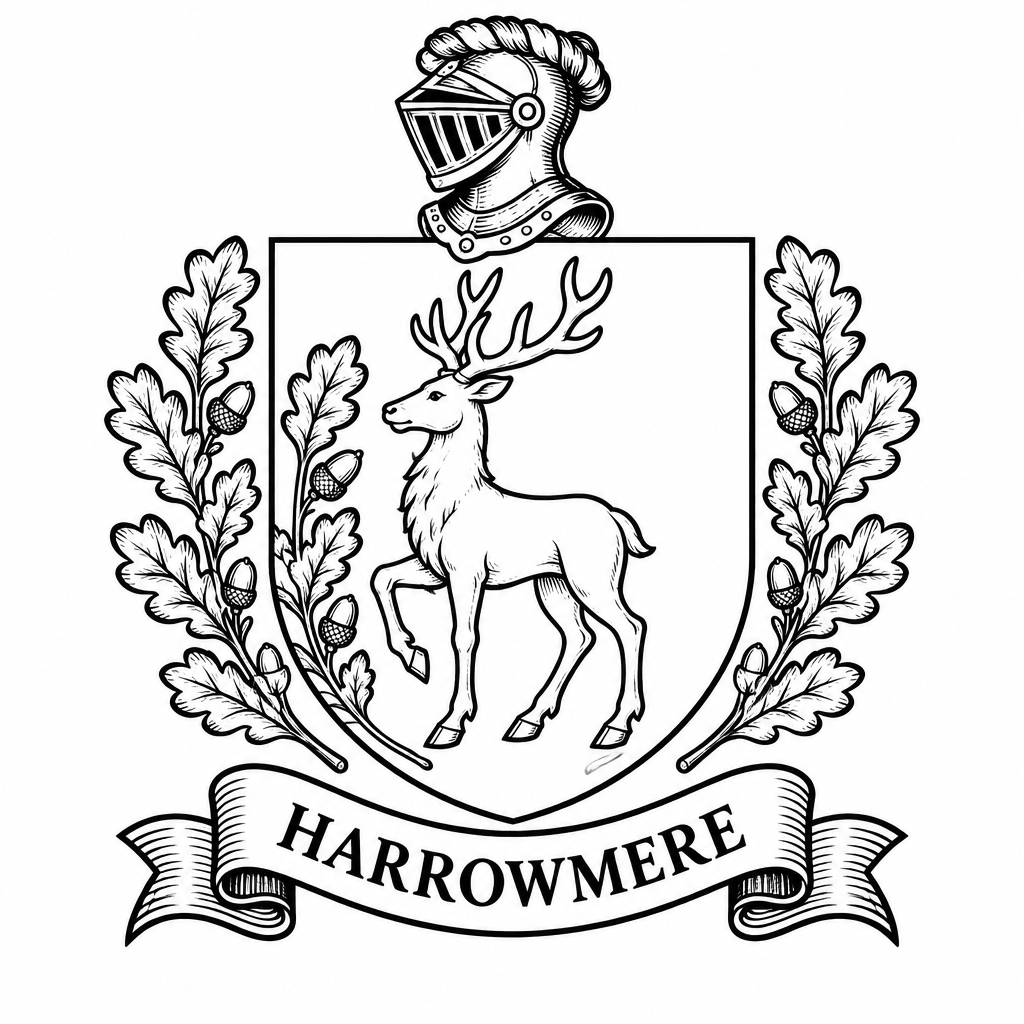
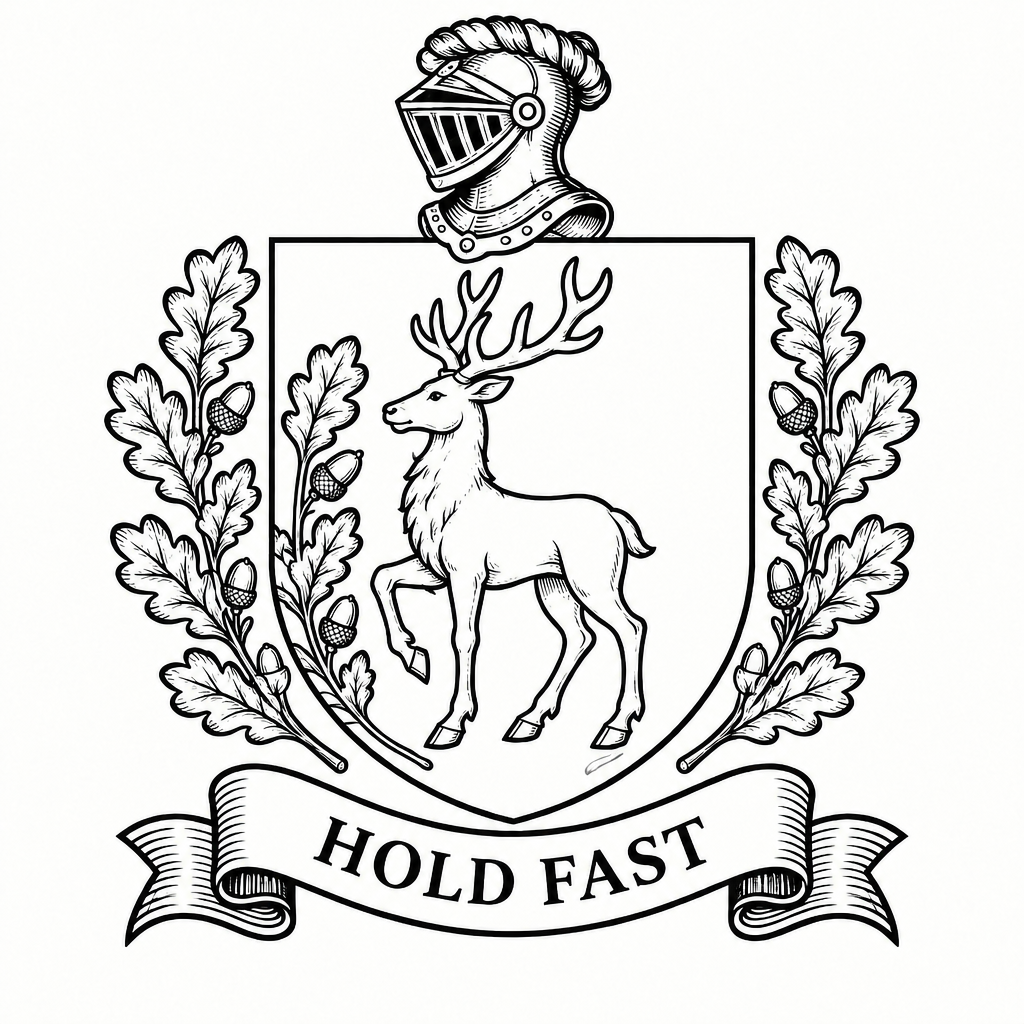
The engraving, in Quick Edit: "Turn this coat of arms into a single-colour engraving: black linework only on a white background, the same shield, stag, oak branches, helmet and banner, with the banner still reading HARROWMERE." The motto, in Edit Text, as the instruction: "Change the text on the banner from HARROWMERE to HOLD FAST"
Remove BG and Upscale take no description: you select the picture and choose the tool.
What we saw
The first picture was a red shield with a gold stag between two green oak branches, a helmet above it and a blue banner under it, and the banner said HARROWMERE, spelled right. The engraving kept the same shield, stag, branches, helmet and banner in black lines on white, and the banner still said HARROWMERE.
The motto edit gave a banner that said HOLD FAST. It also redrew the picture: looking at the two engravings side by side, some of the oak leaves and some of the lines of the stag were a little different. Remove BG gave a picture with a transparent background, and Upscale made the file four times larger on each side. The table shows the sizes.
We ran each step once, so these are single runs, not an average. Run the same description again and the crest will come out different. With a name, a motto and fine lines, the part to check every time is the spelling of the words and the lines at the size you will use.
| Step | Size |
|---|---|
| Colour crest | 1024 × 1024 px |
| One-colour engraving | 1024 × 1024 px |
| After Edit Text | 1024 × 1024 px |
| After Remove BG | 1024 × 1024 px |
| After Upscale | 4096 × 4096 px |
Transparent file and larger file
Remove BG took the white away from around the crest, and also from the outside of the lines of the leaves, so the crest sits on a transparent background. The edge was soft: a thin pale rim stayed around the fine lines, and you see it on a dark colour. The inside of the shield stayed white and solid.
Upscale returned a larger picture but not a transparent one: where our transparent file was clear, the larger file was flat black. We ran Upscale on the transparent file, so if you need both, it is worth trying Remove BG last, and checking the result on the colour you will use it on.
Keep the pictures of every step. If the larger file is not the one you need, the transparent file and the engraving are still there, and you can go back to the step before and take another way.
Before you print or stitch it
We did not test a shirt, a stamp or an embroidery file, so this page makes no promise about them. What we can say is that the engraving is black lines on white, which is a simpler thing to start from than a coloured picture, and that fine lines are the first thing to check at the size you need.
Read the words on the banner letter by letter, keep the original picture, and remember the crest is an illustration: it is yours to use as a design, and it is not an official family emblem.
If you are making a crest for other people, such as a family reunion, show them the engraving and the coloured crest next to each other before anything is printed, so everyone agrees on the words and the shield.