What it means to edit text in an image
When the words are part of a picture, they are not text any more: they are colored pixels, like everything else in it. You cannot click on them and type. A poster you saved as a picture, a screenshot, a flyer or a card all work this way, and that is why changing one word is harder than it looks.
There are two ways around it. You can rebuild the picture in a design program with real text, which is exact but takes time and needs the original file. Or you can ask a tool to draw the picture again with the new words in it, which is quick but is a redrawing, not a change of the original. FlowPix Edit Text is the second kind, and this page says what that means.
How to edit text in an image in FlowPix
Put the picture on the FlowPix canvas and select it. In the picture toolbar open the More menu and choose Edit Text. A panel opens and FlowPix scans the picture for text. If it finds none, the panel says No text detected and there is nothing to edit.
When it finds text, describe the change in the box. Say which words to change and what they should become, and put the words in quotes, for example Change "Summer Camp" to "Winter Camp". Press Apply and wait while the picture is edited.
The new picture replaces the one on the canvas, in the same place. If you want to keep the first one too, duplicate it before you start. If the result is not right, describe the change again and apply it to the result or to the copy.
What we tried
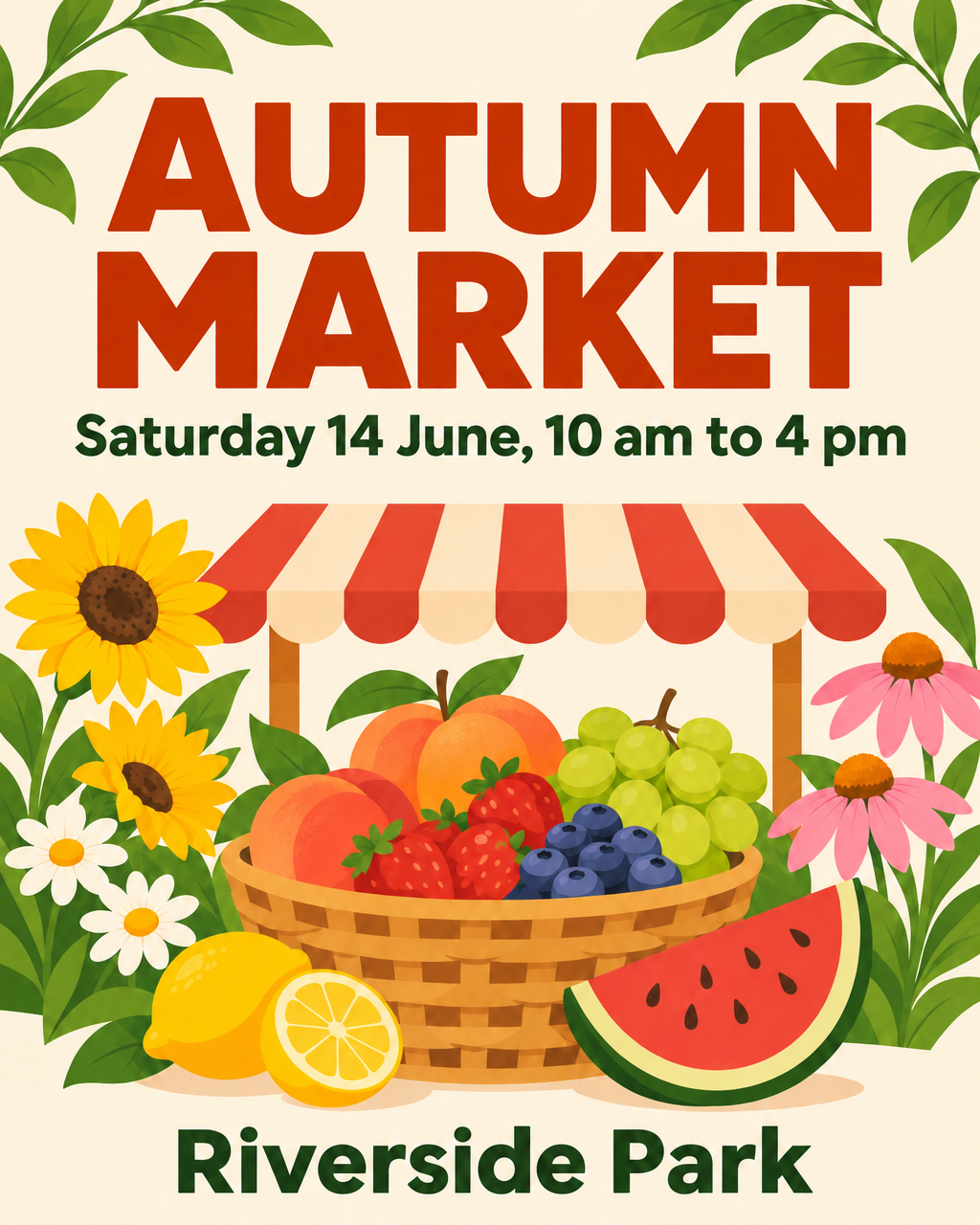
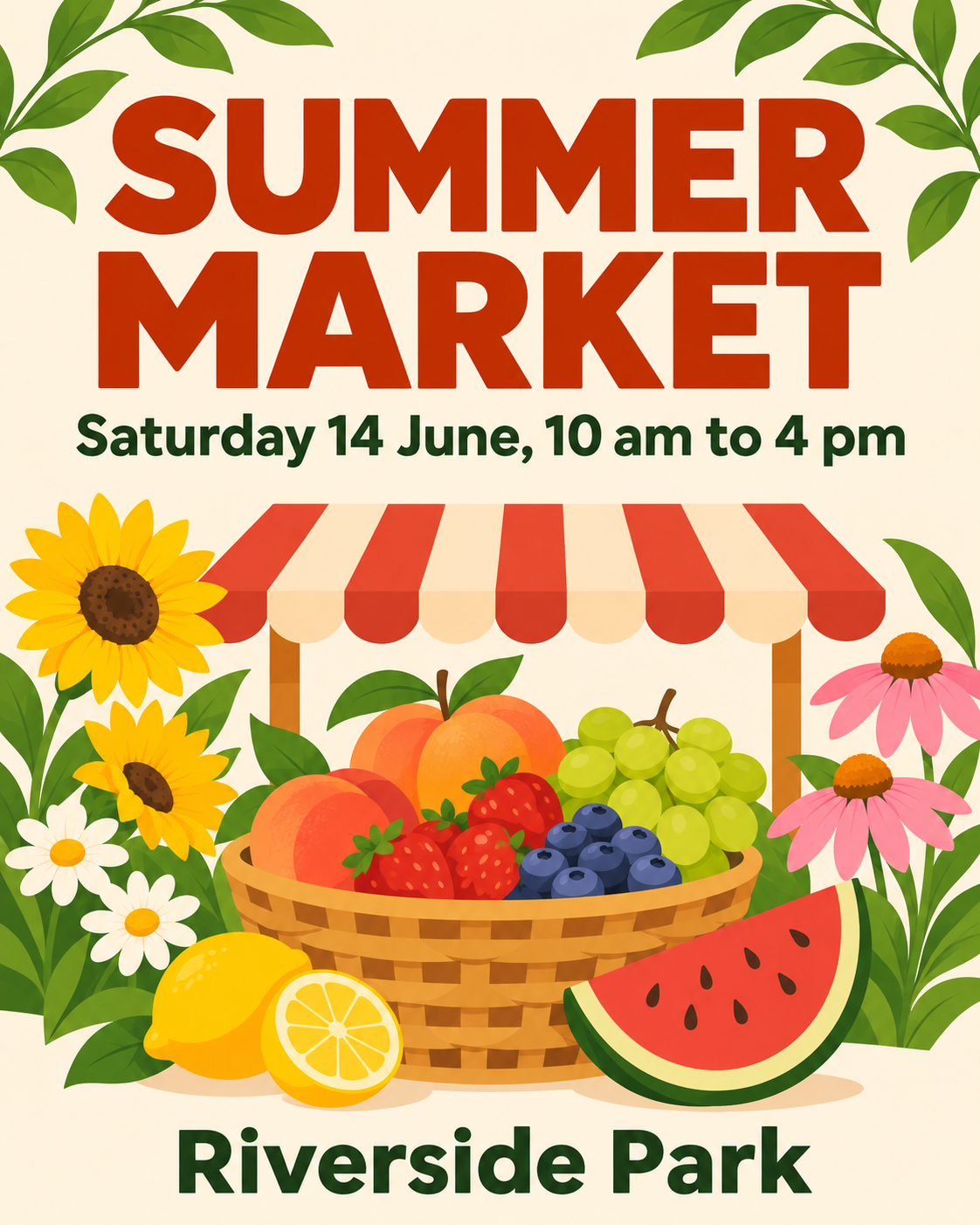
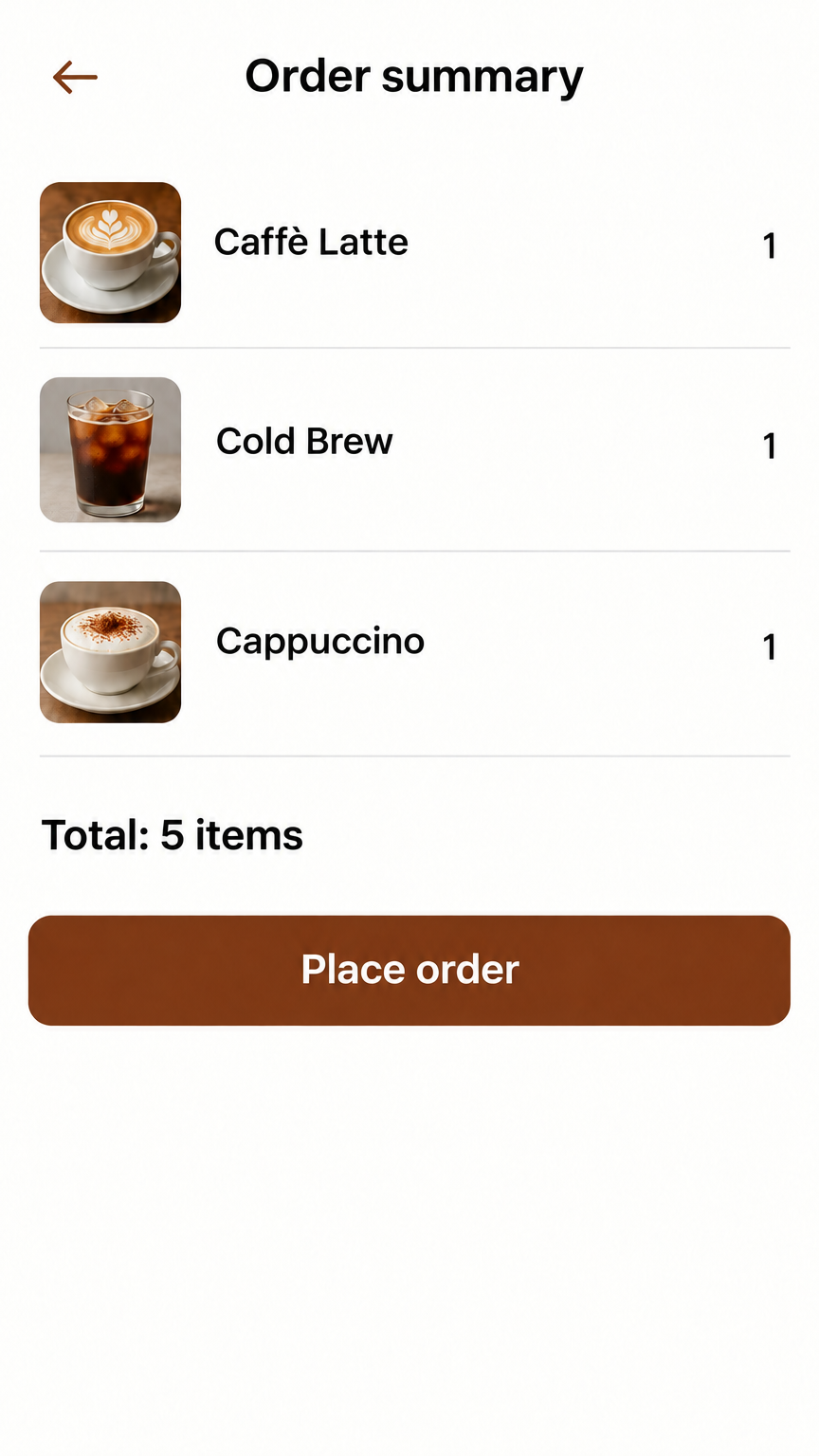
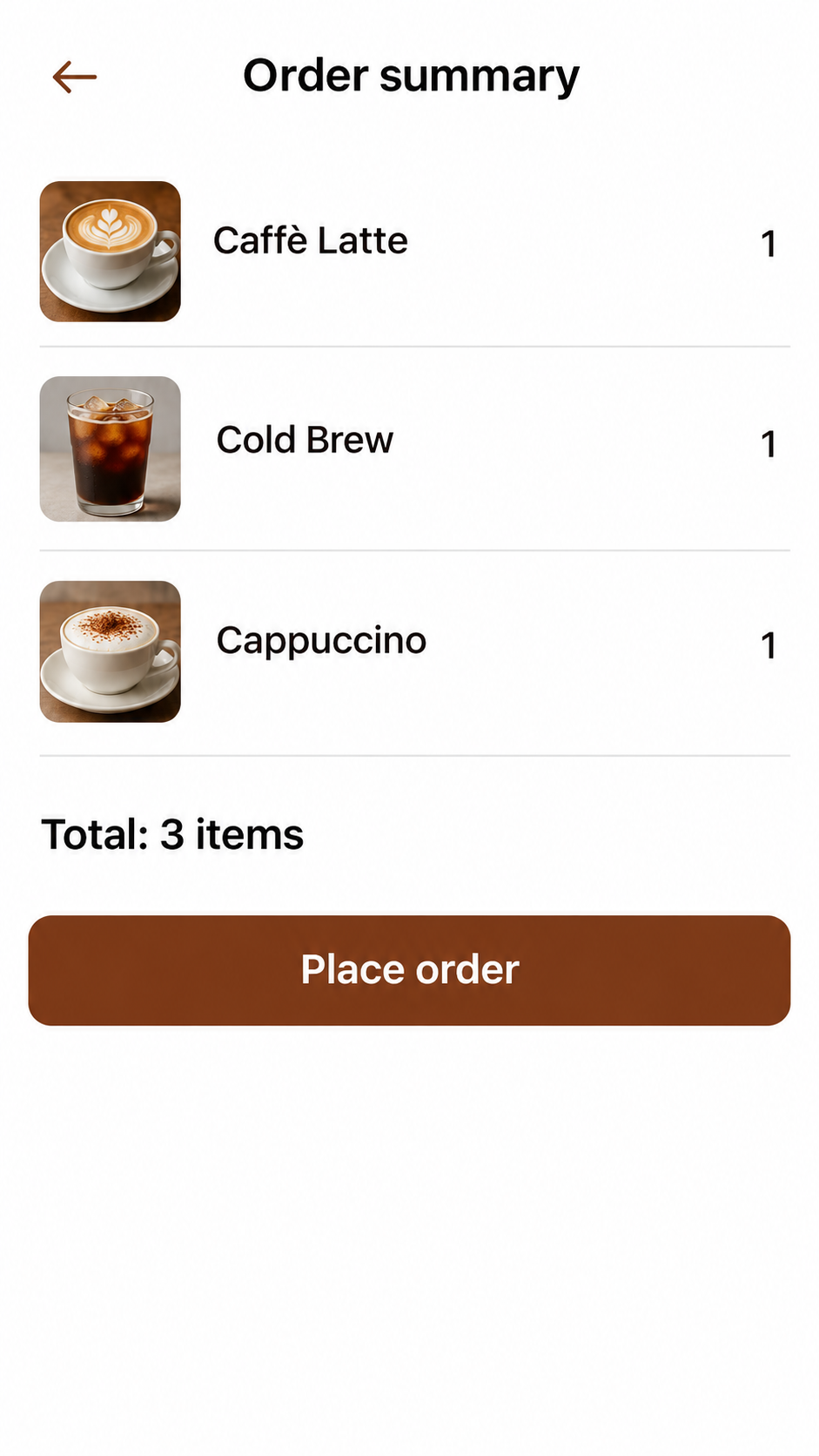
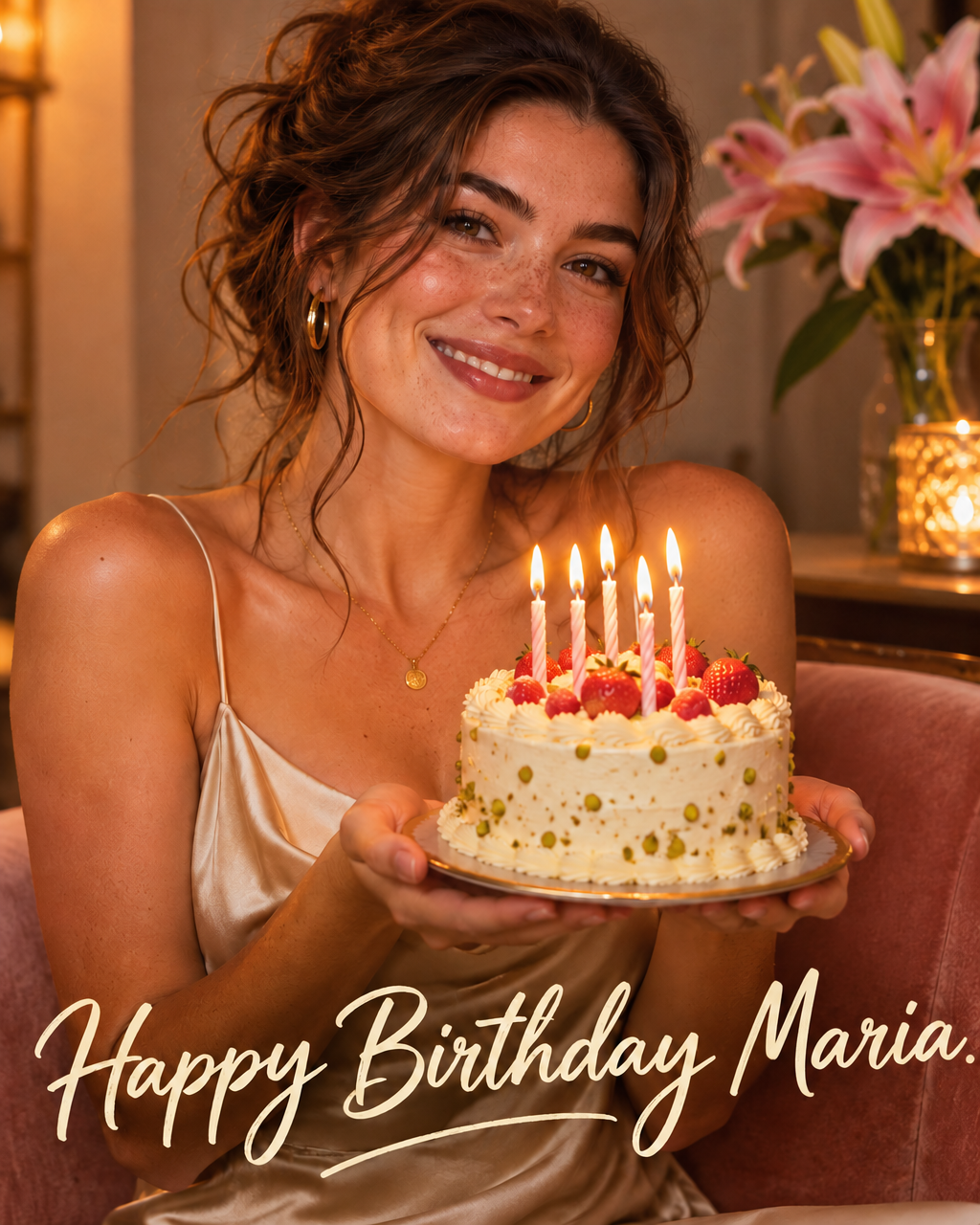
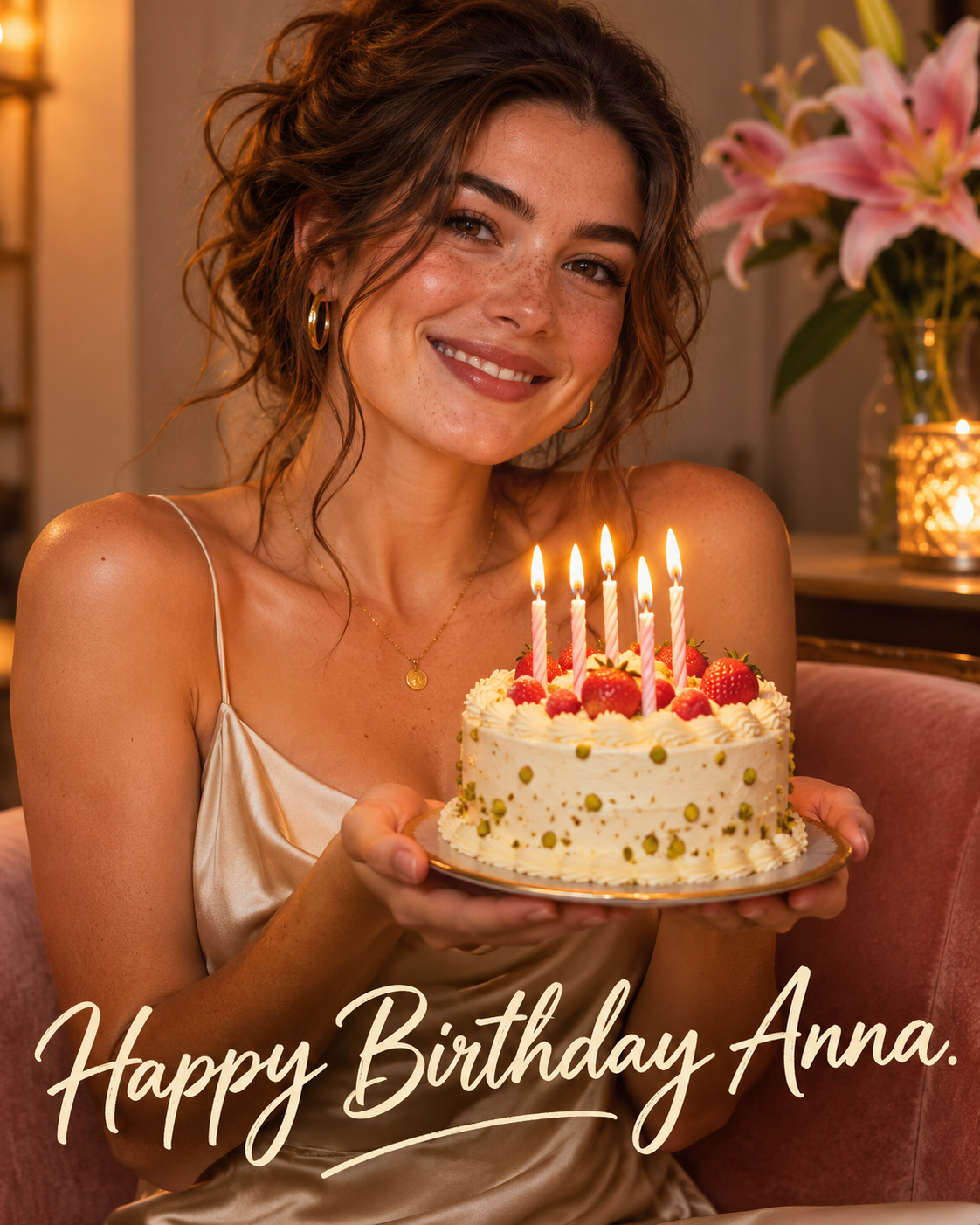
We made three pictures with words in them: a market poster, a screenshot of a coffee shop app and a birthday card with a woman holding a cake. They are pictures we generated ourselves, not real posters or people. On each we ran two edits, six runs in all, with the same editing model and settings as the tool and the instruction written as you would write it. The four sliders on this page show some of the results as they came back, not edited afterwards.
The table shows how big each result was compared with the picture we started from. The tool asks for the same shape as the original, but the result is about a thousand pixels on the long side, whatever the size of the original.
| Picture | Original | Result |
|---|---|---|
| Market poster | 1122 × 1402 px | 1024 × 1280 px |
| Phone screenshot | 941 × 1672 px | 864 × 1536 px |
| Birthday card | 1122 × 1402 px | 1024 × 1280 px |
What changed besides the words
We put each result next to its original and looked at the whole picture. The words we asked for were there in five of the six, and the layout stayed the same. But the picture was drawn again, not edited in place. On the poster the fruit and the flowers were drawn a little differently. In the screenshot the small coffee pictures and the line positions moved slightly. On the card the woman still looked like the same person, but her freckles, her hair and the candles were drawn again.
That is the rule to keep in mind: the words change on purpose, and everything else changes by accident. If the details of the picture matter, such as a face, a logo or a product, look at them closely, or keep the original and use the edited one only where a small difference does not matter.
The words themselves
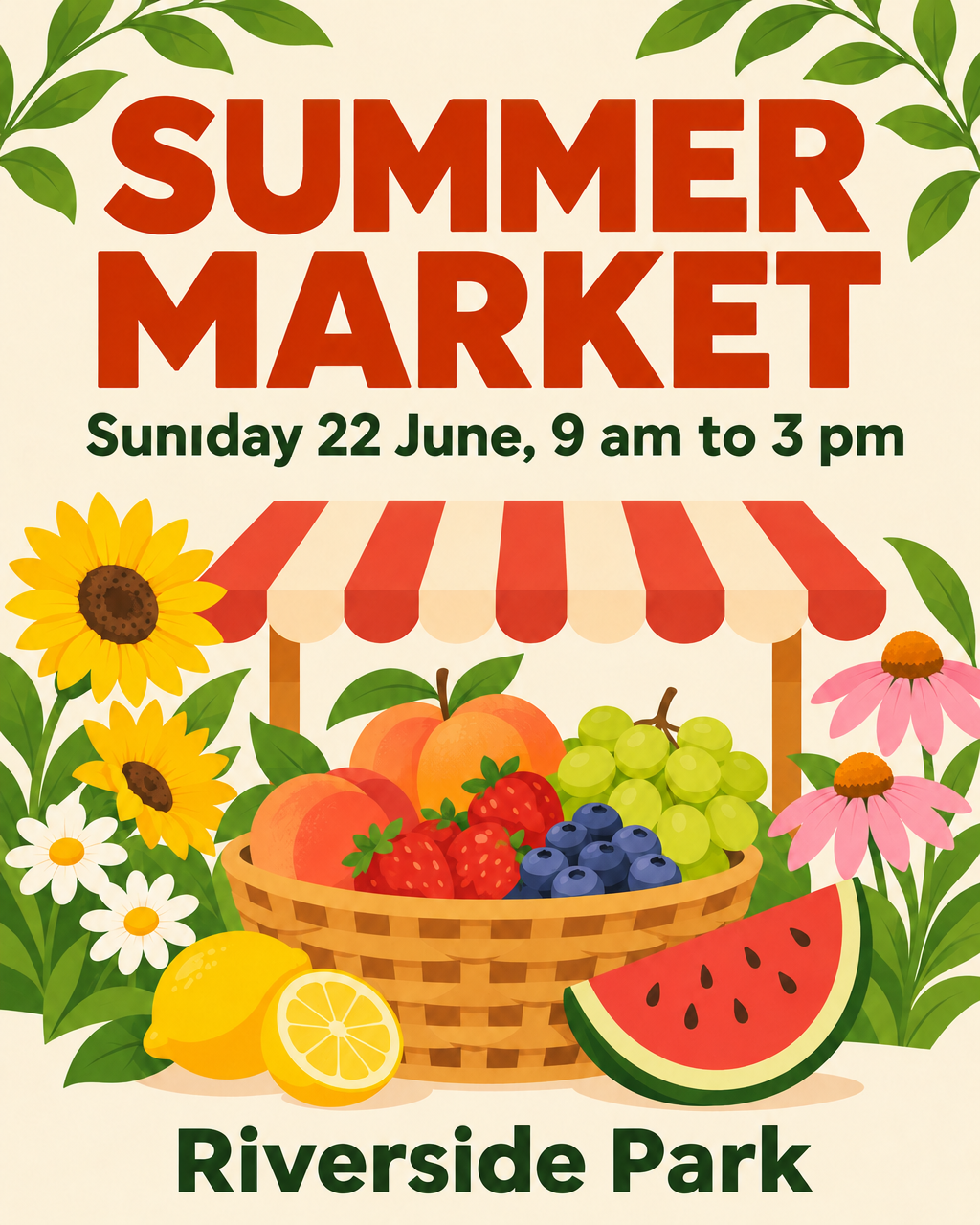
In five runs the new words were spelled as we wrote them: a new headline on the poster, a different total in the screenshot, a new name and a new greeting on the card, and a new word on the button. In the sixth, the date line of the poster came back with Suniday where we asked for Sunday. The rest of that line was right.
So read the result letter by letter at full size, and run it again if something is wrong. We only tried words in English, so we cannot say how it does with other alphabets.
Keep the original, and mind the size
Because the result replaces the picture, make a copy first if you want both. You can then put the two side by side and look for what changed. If you need a bigger picture afterwards, the AI Image Upscaler can enlarge it, but it cannot bring back detail that the edit redrew.
And because the result is about a thousand pixels on the long side, a large original comes out smaller. For a post on social media that is often enough. For a print, check the size of the result before you rely on it.
When to use it and when not to
Use it on designs that are yours: a poster you made last year, a flyer for a new date, a card with another name, a picture of your layout with another word on a button. It saves rebuilding the picture when you do not have the original file.
Do not use it to change the words of an ID, a receipt, a contract or any picture that has to be true to what it shows. A redrawn picture is not the original, and it can contain mistakes. If you want to take words out of a picture rather than change them, see the AI Object Remover.