
What an AI Christmas card is here
FlowPix has no card template that you fill in. What it has is Quick Edit, a tool on the canvas that takes a picture you already have and redraws it from a description. For a Christmas card that means you start from a real photo of a person or a pet, say what the card scene should look like, and get a new picture back.
That is useful when you want the same person in a few different Christmas scenes, or when you have one good photo of a pet and want it dressed for the season. It is not useful when the card has to show a face exactly as it is, because the whole picture is drawn again, and this page says what that looks like.
How to make one in FlowPix
Put the photo on the canvas, select it and open Quick Edit in the picture toolbar. Describe the card scene in one or two sentences and press Run. The button shows the credits the run will cost before you press it.
The result comes back as a new picture and your original is not changed. If you do not like it, change the description and run it again. Because every run is a new redraw, it helps to put the result next to the original and look at the face before you decide.
The prompts we used
We wrote six prompts, one for each picture on this page, and ran each of them once. They are the whole description that Quick Edit received, so you can copy them and change the details.
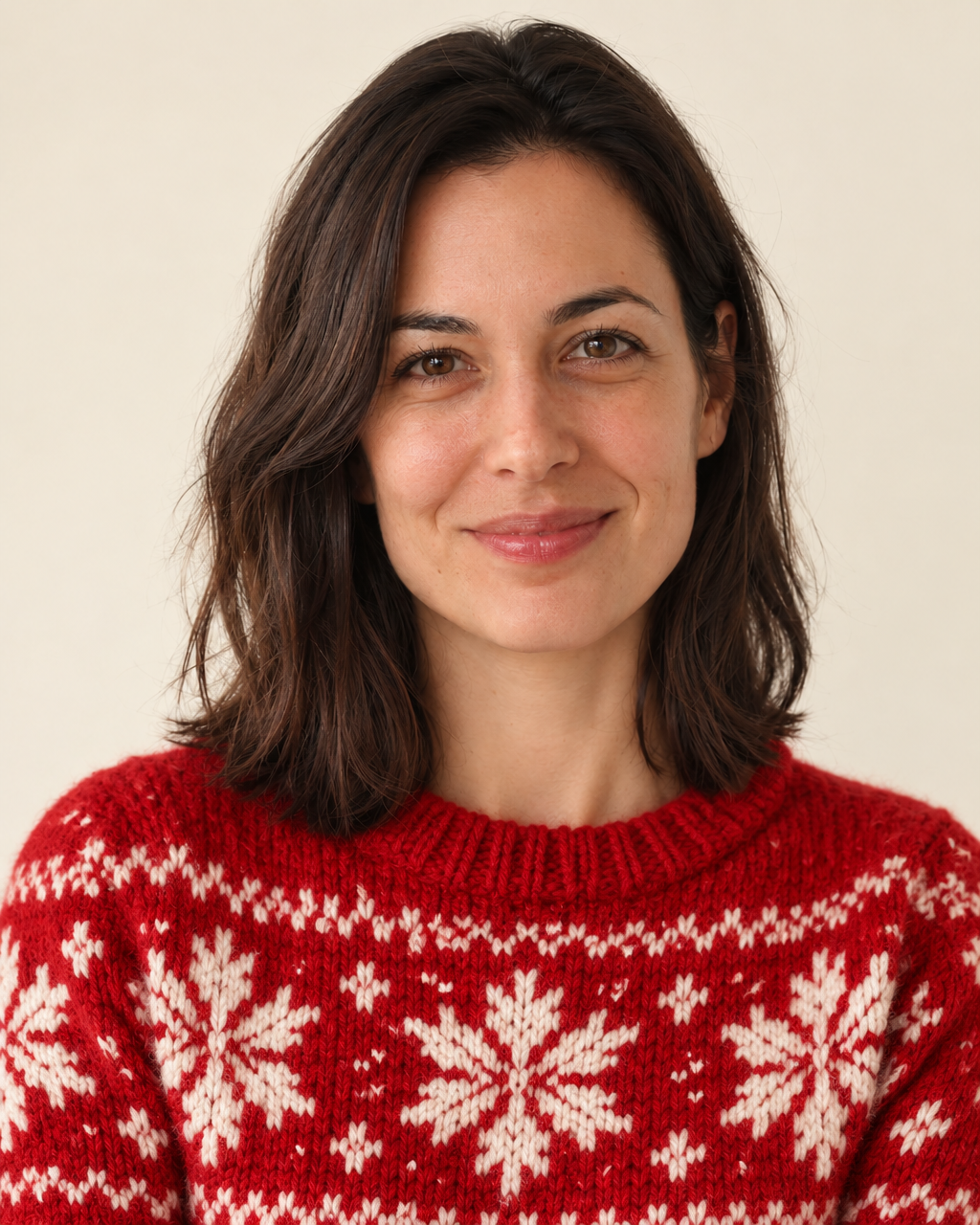
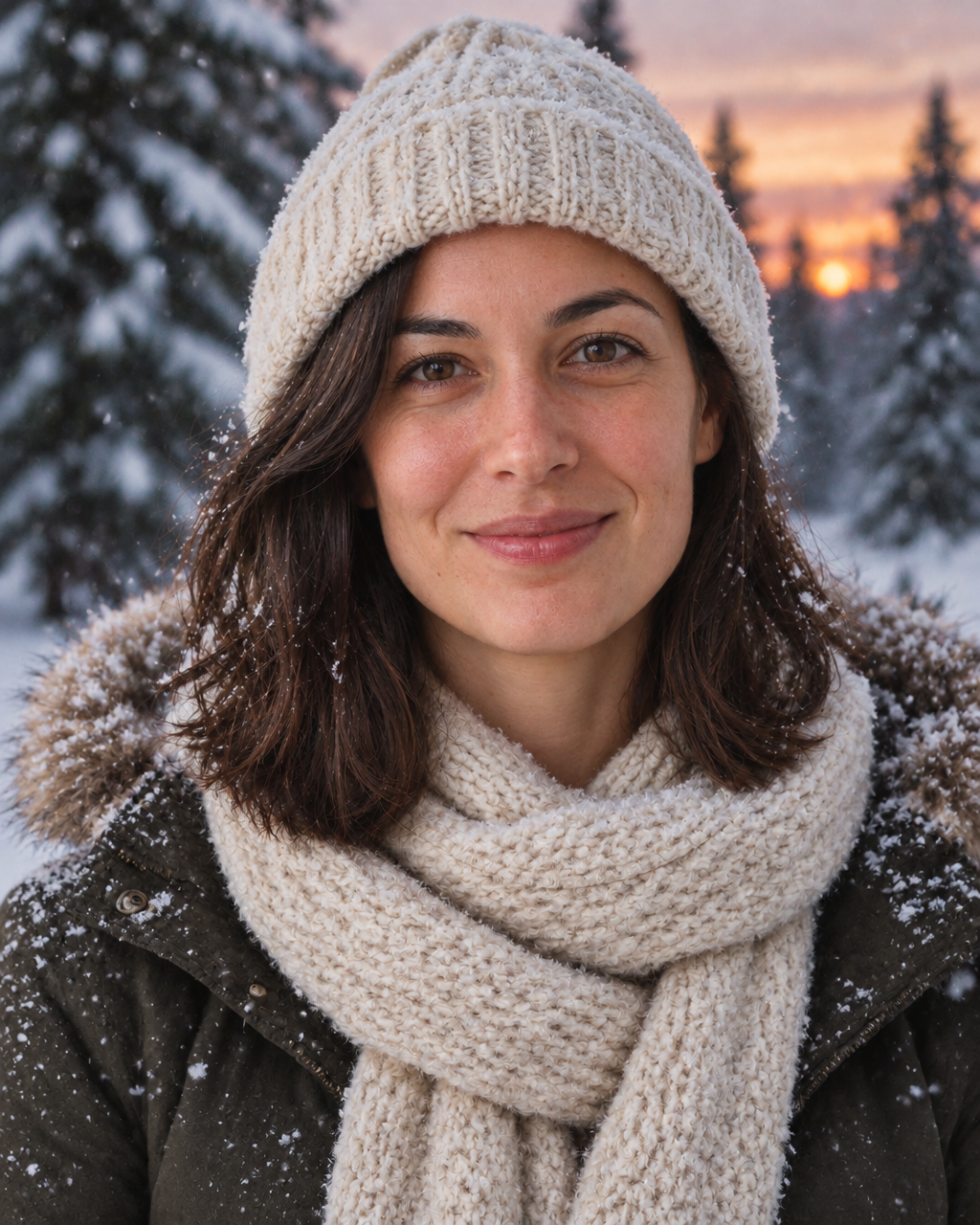
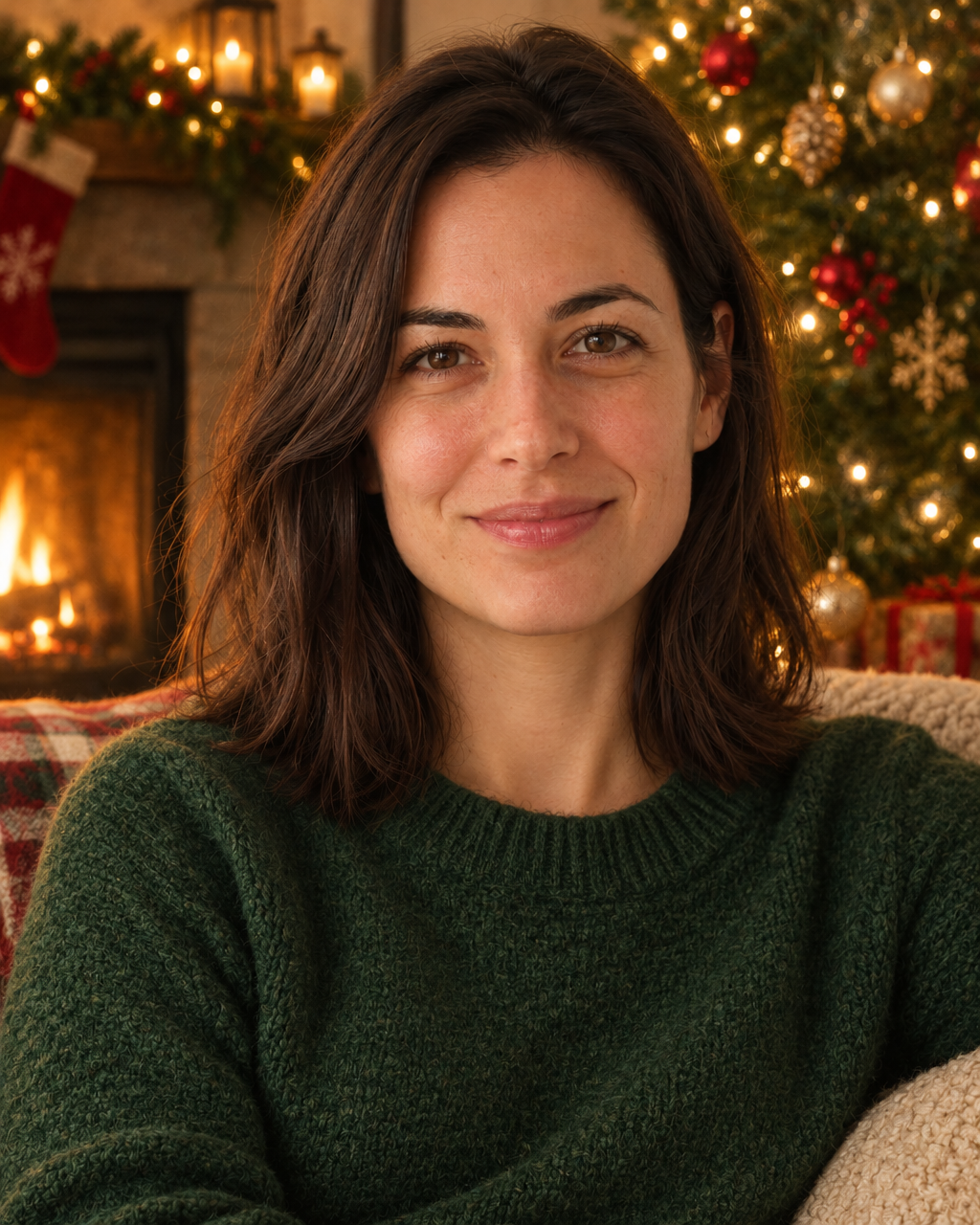
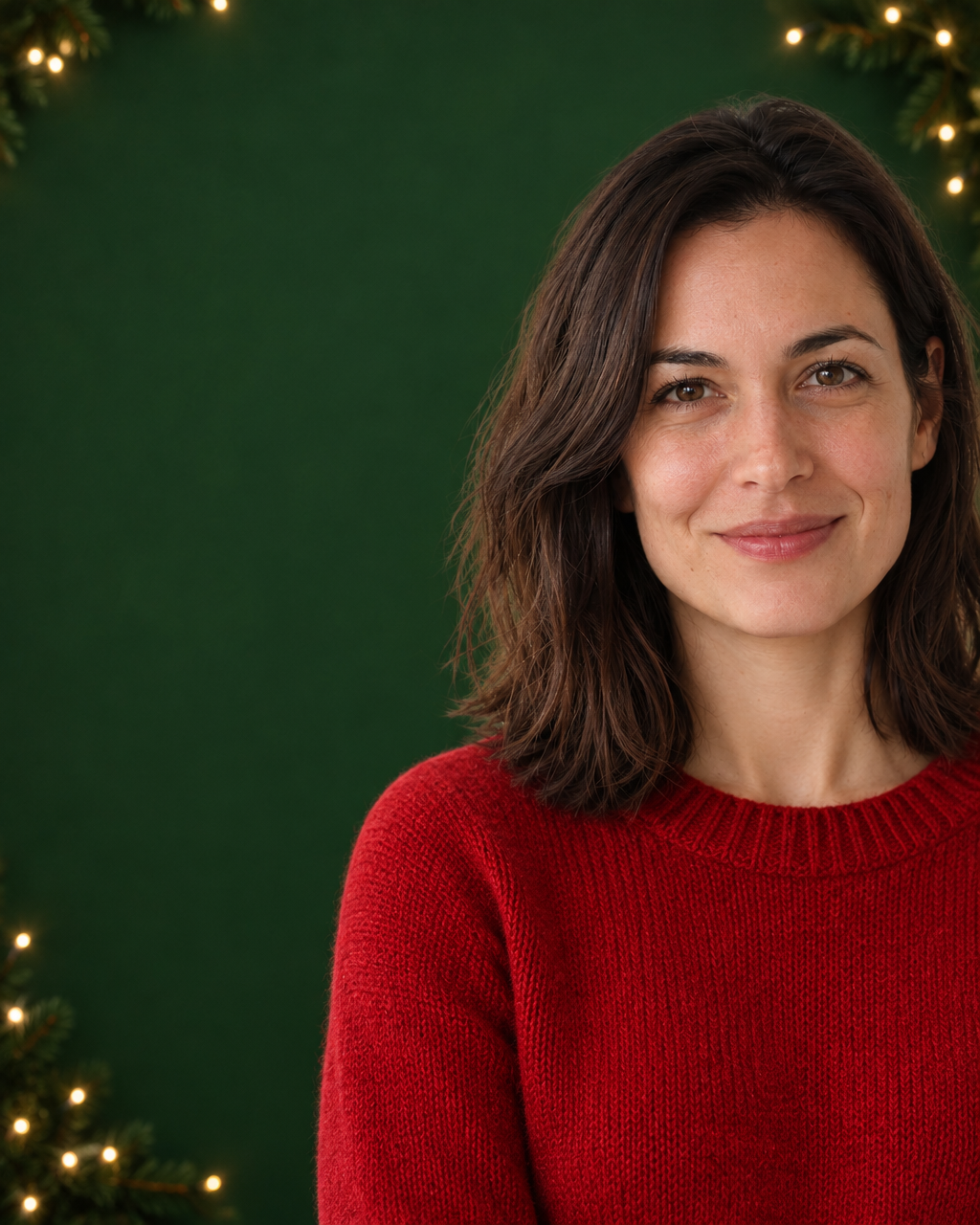
For the portrait of a woman: "Dress the person in a chunky red Christmas sweater with a white snowflake pattern. Warm studio portrait, soft light, a plain cream backdrop. Keep the face and hair exactly the same." Then: "Place the person outdoors in a snowy pine forest at dusk with soft falling snow, wearing a cream knit hat and scarf. Keep the face and hair exactly the same." Then: "Place the person sitting beside a cosy fireplace with a decorated Christmas tree behind, warm golden light, wearing a green sweater. Keep the face and hair exactly the same." And for the card layout: "Turn this into a Christmas card photo: the person on the right third wearing a red sweater, a plain dark green area on the left two thirds with a few small gold lights at the edges and no text, leaving the space empty for a message. Keep the face the same."
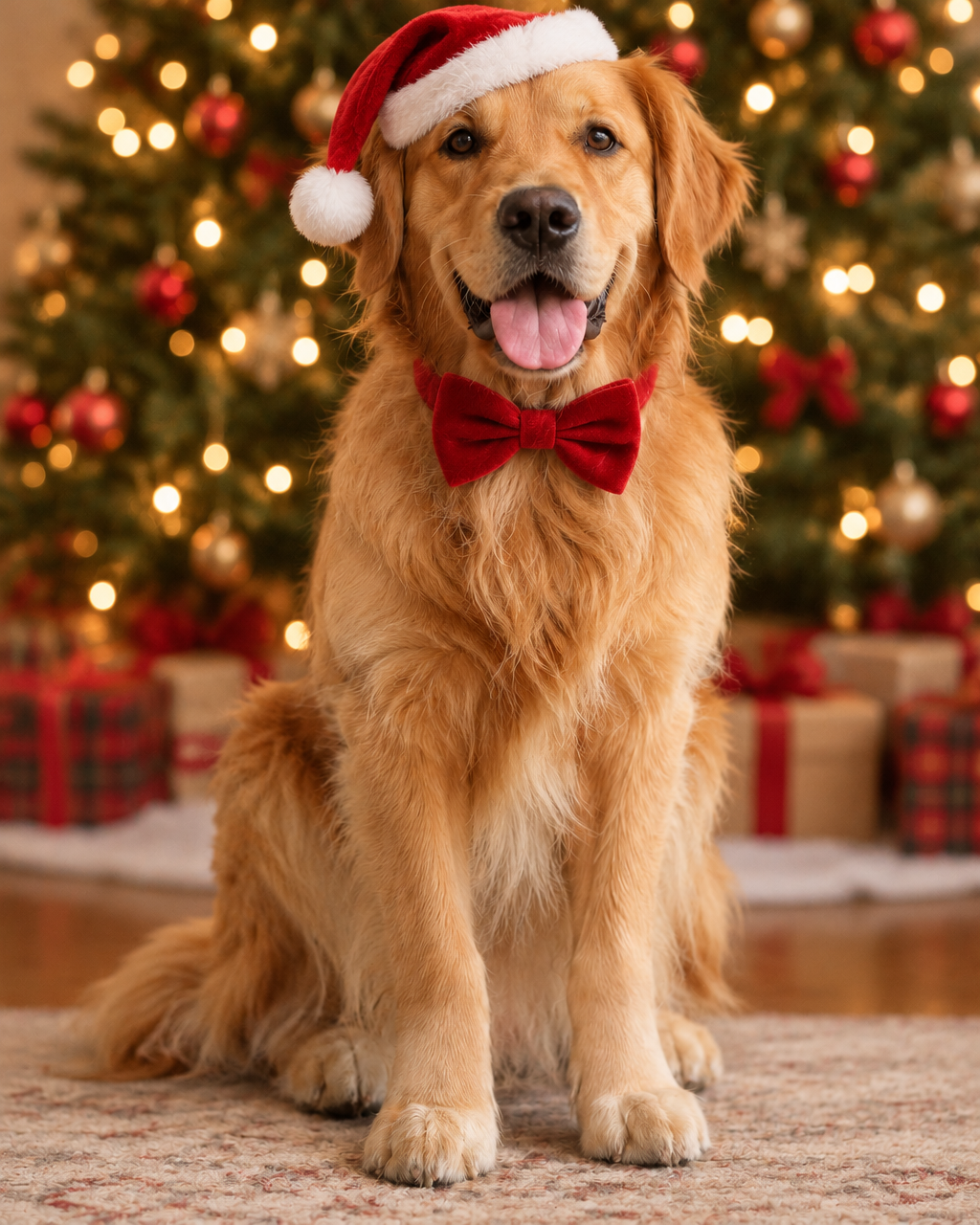
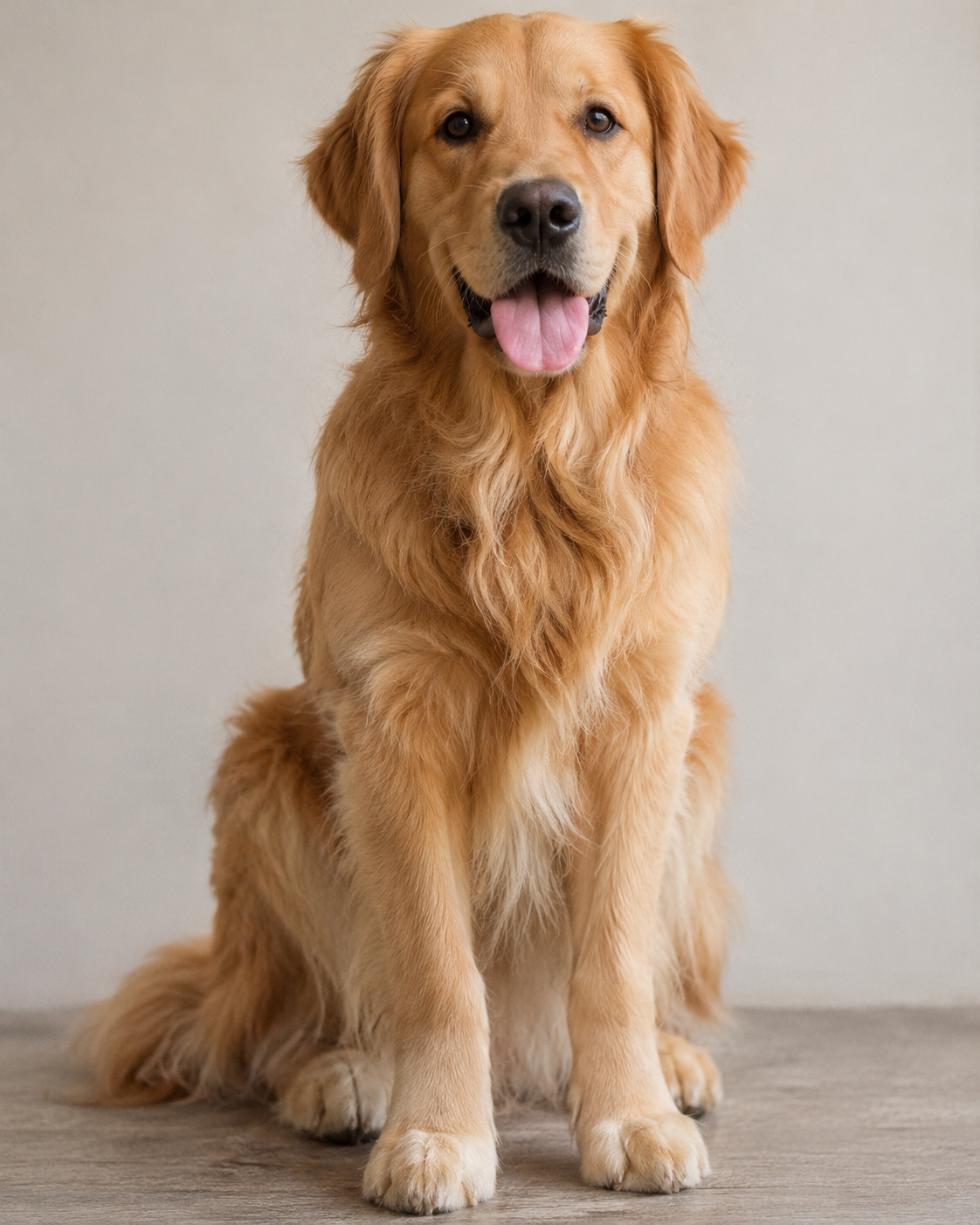
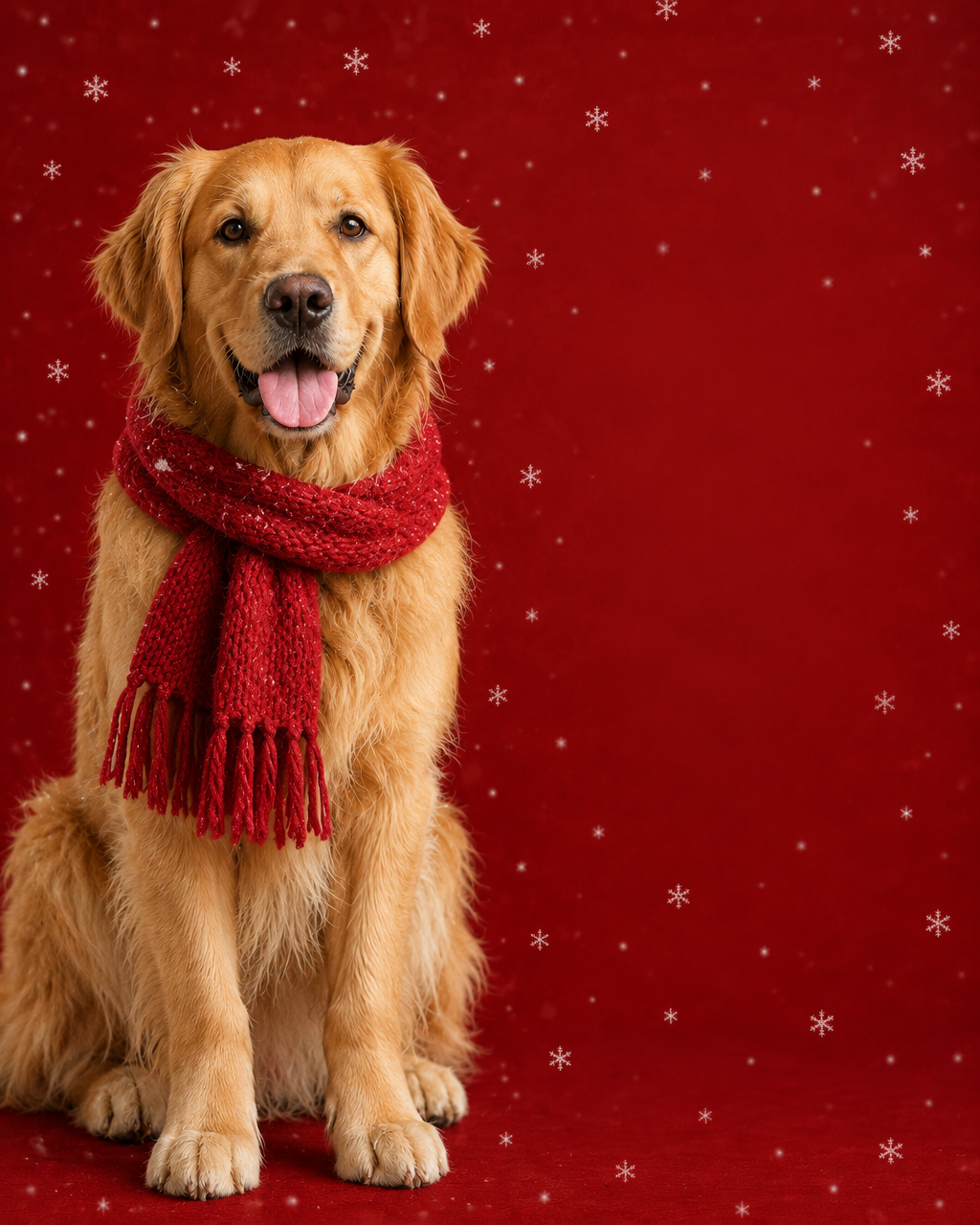
For the photo of a dog: "Put a red bow collar and a small Santa hat on the dog, in front of a softly blurred Christmas tree with warm lights. Keep the dog exactly the same." And for the pet card: "Turn this into a Christmas card photo: the dog on the left third wearing a red scarf, the right two thirds a plain deep red background with tiny white snowflakes and no text, leaving room for a message."
What we saw
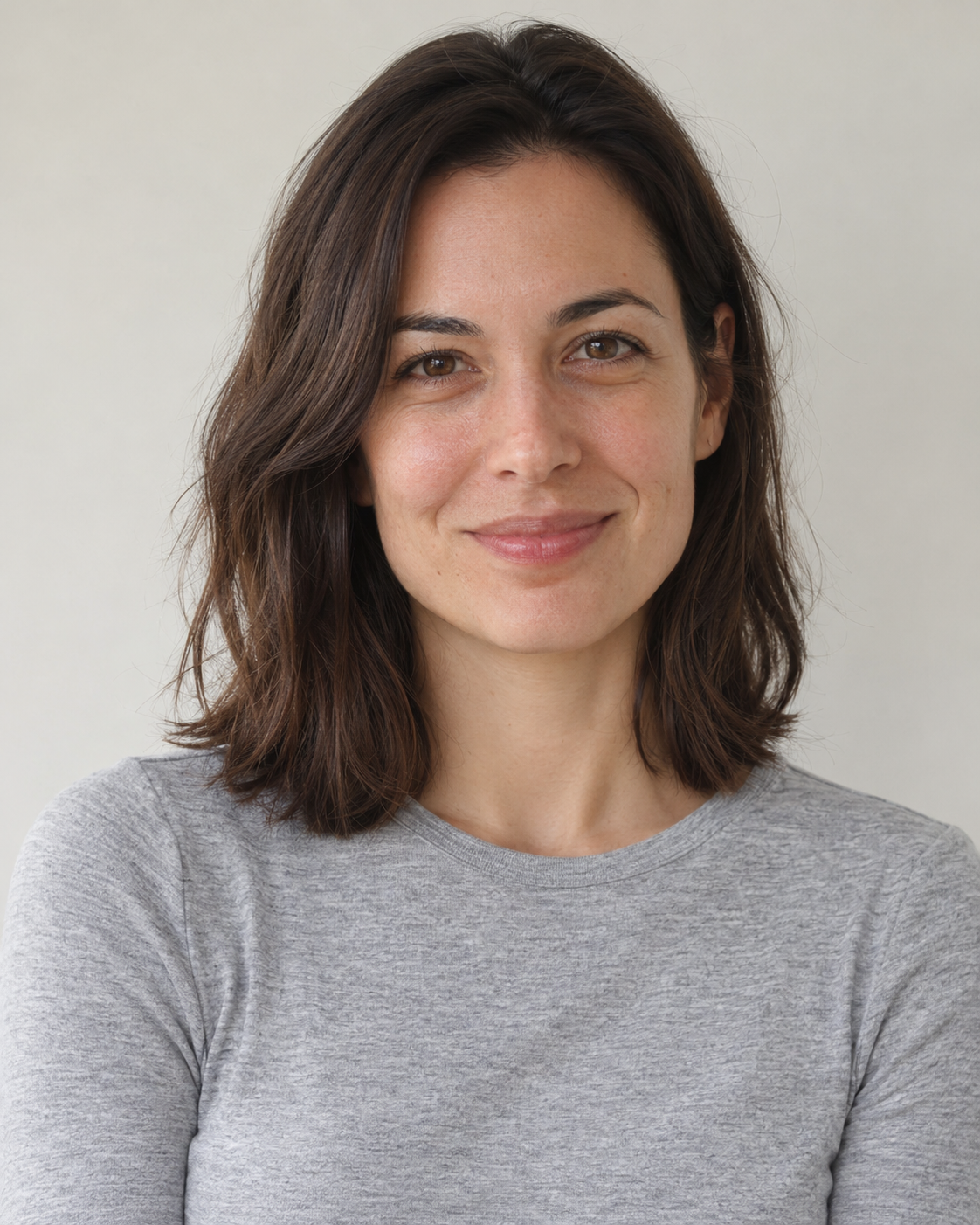
Both photos are pictures we generated ourselves, a fictional woman and a fictional dog, not real people or real pets, and the six results are exactly as they came back, not edited afterwards. The six sliders on this page show them.
In every portrait the woman was clearly the same person: the same face shape, the same eyes and the same smile. But the picture was drawn again, so it is a new picture and not the old one with changes laid on top: her hair and the small details of her face are not copies of the original. In the snow scene a hat covered most of her hair, and a winter coat appeared that we had not asked for. The fireplace scene came with a stocking and a decorated tree, and the studio scene with a patterned sweater, all as asked.
The dog also came back looking like the same dog, with a bow and a Santa hat in front of a lit tree in one picture and a knitted red scarf on a snowy red background in the other. As with the woman, it is a new drawing, so the markings and the fur are worth checking against the photo you started from.
| Picture | Original | Result |
|---|---|---|
| Portrait (four runs) | 1122 × 1402 px | 1024 × 1280 px |
| Dog photo (two runs) | 1122 × 1402 px | 1024 × 1280 px |
Leave room for your message
A card needs space for words, so two of our prompts asked for an empty area and for no text. Both pictures came back with the plain area we asked for and with no text in it: dark green with a few small lights at the corners in the portrait, deep red with small snowflakes in the pet card.
The layout was only partly what we asked for. We asked for the person on the right third and got her on the right half, with her hair and shoulder touching the right edge. We asked for the dog on the left third and got it on the left half, close to the left edge. If you need a wide empty area, ask for a bigger one than you think you need, and look at the result before you plan the text.
Cards for pets
A pet photo is a good first thing to try: a scarf, a bow or a hat is a clear request, and the background is easy to replace with a tree or a plain colour.
We still checked the result the same way as the portraits: the markings, the eyes and the ears against the original. If the dog in the card does not look like your dog, run it again with a more exact description, such as the colour of the coat and the colour of the eyes.
What to check before you send it
Keep the original photo and work on a copy, and compare the face with the original at full size before you send the card to anyone who knows the person. Look at the edges of the picture too, because a person or a pet may touch one, and at any extra thing the model added that you did not ask for.
Write the greeting yourself, because we did not test words drawn by the model. The result is about a thousand pixels on the long side, so look at it enlarged before you print it, and make it larger first if it looks soft.