The figures YouTube gives
YouTube Help's page on channel branding, read on 27 November 2026, gives the figures below. It also says the same banner is used on computer, mobile and TV, and that it shows differently on each. It does not say which part each device shows, or where the safe area sits.
| What | YouTube Help |
|---|---|
| Recommended size | 2560 × 1440 px (especially for TV) |
| Minimum size | 2048 × 1152 px |
| Shape | 16:9 |
| Safe area for text and logos | 1235 × 338 px at the minimum size |
| File size | 6 MB or smaller |
What we measured: the strip the channel page shows
On 27 November 2026 we read the banner images that YouTube's channel page loads, for five channels, on the computer site and on the phone site. Each image address carries the crop YouTube applies, and it was the same for all five on both sites: the full width and the middle 29% of the height. The largest image served was 2560 × 424 px.
The safe area, scaled from the minimum width to 2560, comes to 1544 × 423 px: the same height as that strip. So on a 2560 × 1440 banner, keep the channel name and logo inside a 1544 × 423 box in the strip, and let the rest of the picture be background that can be cut off.
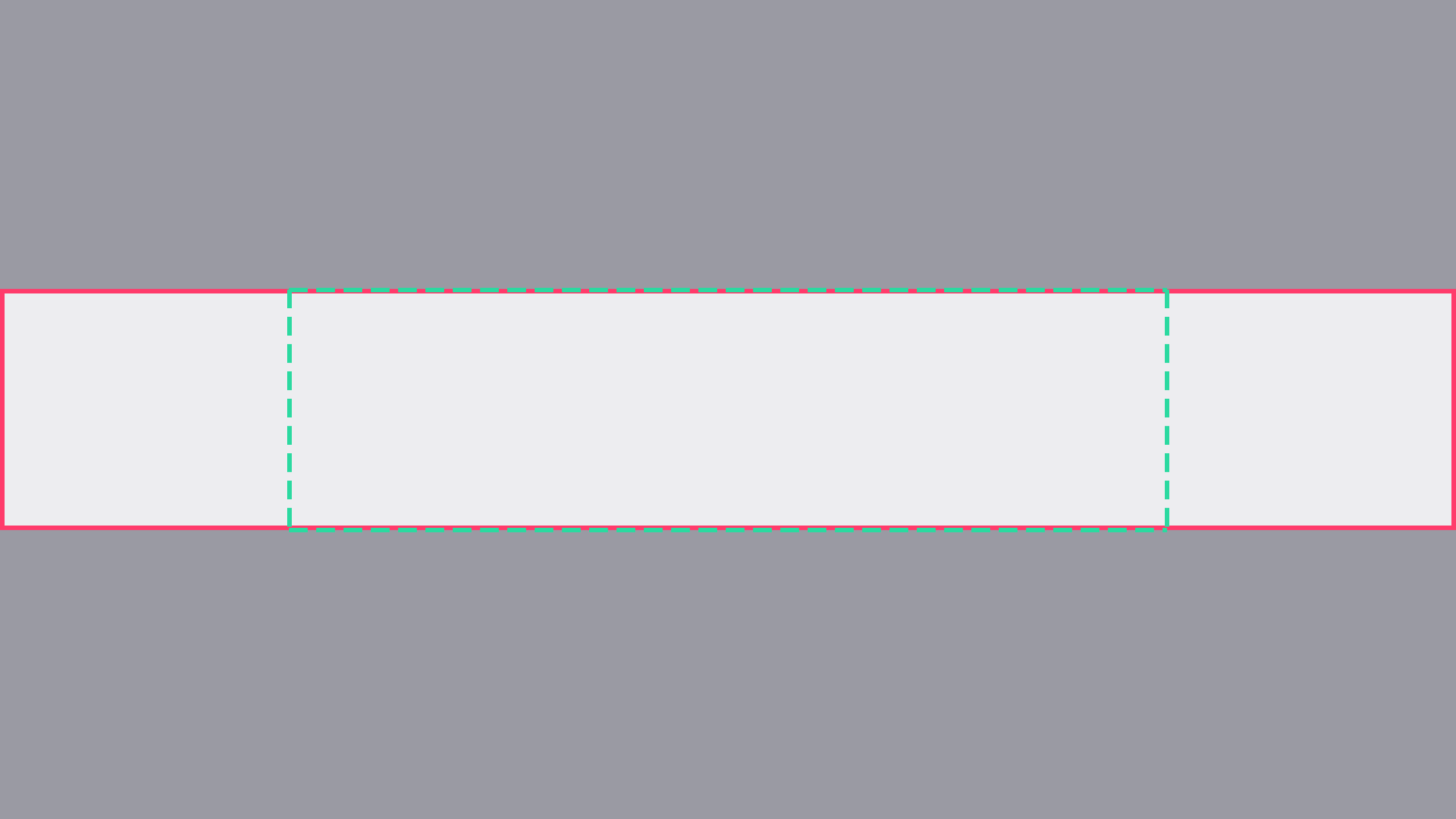
- YouTube banner template with safe area (PNG) · 2560 × 1440 px · 14 KB
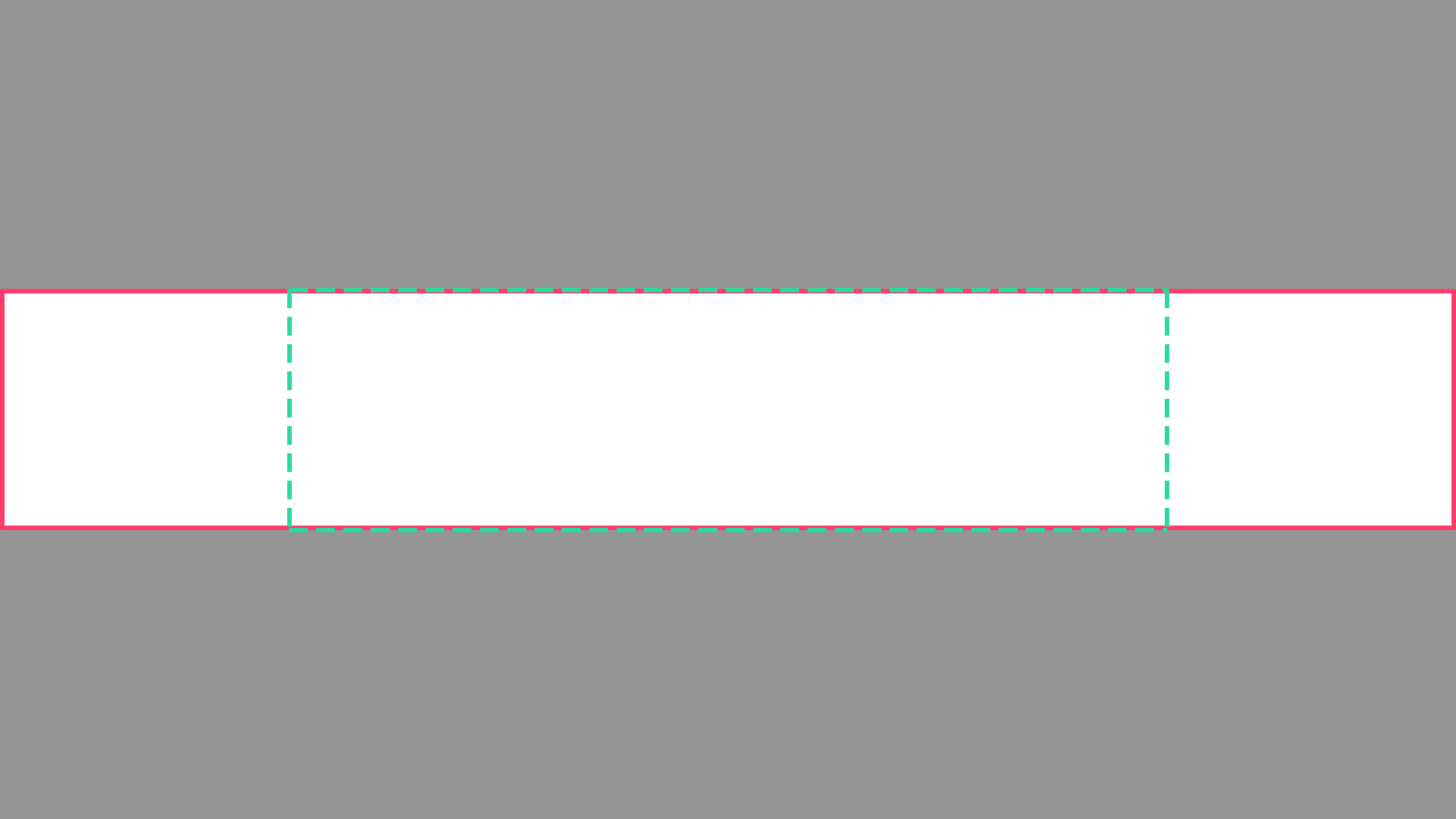
- Transparent safe-area overlay to put over your design (PNG) · 2560 × 1440 px · 18 KB
| Area on a 2560 × 1440 banner | Size | From the top |
|---|---|---|
| Whole picture (YouTube Help: recommended especially for TV) | 2560 × 1440 px | 0 to 1440 px |
| Strip the channel page shows on computer and phone (measured) | 2560 × 424 px | 508 to 932 px |
| Safe area for text and logo (YouTube Help, scaled; centred by us) | 1544 × 423 px | 509 to 932 px, 508 px from each side |
How to use the template
Open the template in your editor as the bottom layer of a 2560 × 1440 canvas. The pale strip with the pink line is what the channel page shows; the dashed green box is the safe area. Put the channel name and logo inside the dashed box and let the picture run to the edges, then hide the template layer before you export.
If your design is already made, place the transparent overlay on top of it instead: the darkened parts are cut off on the channel page. Or pick the finished file in the checker above, which draws the same lines on it and shows the strip as the channel page crops it.
Making the banner in FlowPix
Describe the channel in chat and ask for a wide 16:9 picture with everything important in a wide strip across the middle third and a calm empty area in its centre. Leave out letters and logos: words drawn by an image generator can come out wrong, so add the channel name and your real logo in your editor.
The pixel size of the picture depends on the image generator. Check it in the checker; if it is smaller than 2048 × 1152, enlarge it with the AI Image Upscaler before you upload.