
What it means to crop a photo
To crop a photo is to cut away the edges and keep only the part you want. People crop to bring the subject closer, to remove something at the side, to change the shape of a picture for a post or a print, or to make a square or a round version of a picture for a profile.
A crop does not change what is inside the frame. It only decides where the picture starts and ends. That is also why a crop can lose pixels but never add them: the smaller the frame, the smaller the picture you end up with.
How to crop a photo in FlowPix
Put the photo on the FlowPix canvas and select it. Choose Crop in the picture toolbar. A frame appears on the picture, with the parts outside it dimmed, and a panel opens with a width box and a height box in pixels, a lock for the ratio, a grid of ratios and a Circle button.
Click a ratio and the frame becomes the largest frame of that shape that fits in the picture, centered. Drag the frame to move it over the part you want, and drag a corner to make it smaller. When the ratio is locked, the corner keeps the shape. If the part you want is not in the middle, pick the ratio first and then drag the frame: the shape stays while you move it.
Press Apply. For a normal crop the picture on the canvas becomes the cropped one. Press Cancel instead and nothing changes.
Ratios and exact pixels
The grid has nine ratios: 1:1, 3:4, 2:3, 9:16, 4:3, 3:2, 16:9, 4:5 and 5:4. They cover a square, the usual portrait and landscape shapes, a tall phone shape and a wide screen shape. If none of them is the shape you need, type a width and a height in pixels. The frame is centered and cut to exactly that size.
What the shapes are usually for: 1:1 is the square of avatars and many feed posts. 4:5, 3:4 and 2:3 are portrait shapes, from slightly tall to clearly tall. 9:16 is the tall shape of a phone screen. 16:9 is the wide shape of a video frame or a monitor, 4:3 and 3:2 are the shapes of many camera photos and prints, and 5:4 is a little wider than a square. Check the size a site or a printer asks for before you choose.
A square crop is square to the pixel: the same number of pixels across and down. The other ratios come out right to within a pixel. The table shows what the real crops gave.
| Picture | Crop | Result |
|---|---|---|
| 9:16 picture, 864 × 1536 px | 1:1 | 864 × 864 px |
| Square picture, 1254 × 1254 px | 16:9 | 1254 × 705 px |
| Square picture, 1024 × 1024 px | 4:5 | 820 × 1024 px |
| Square picture, 1024 × 1024 px | Typed 600 × 400 px | 600 × 400 px |
What we measured
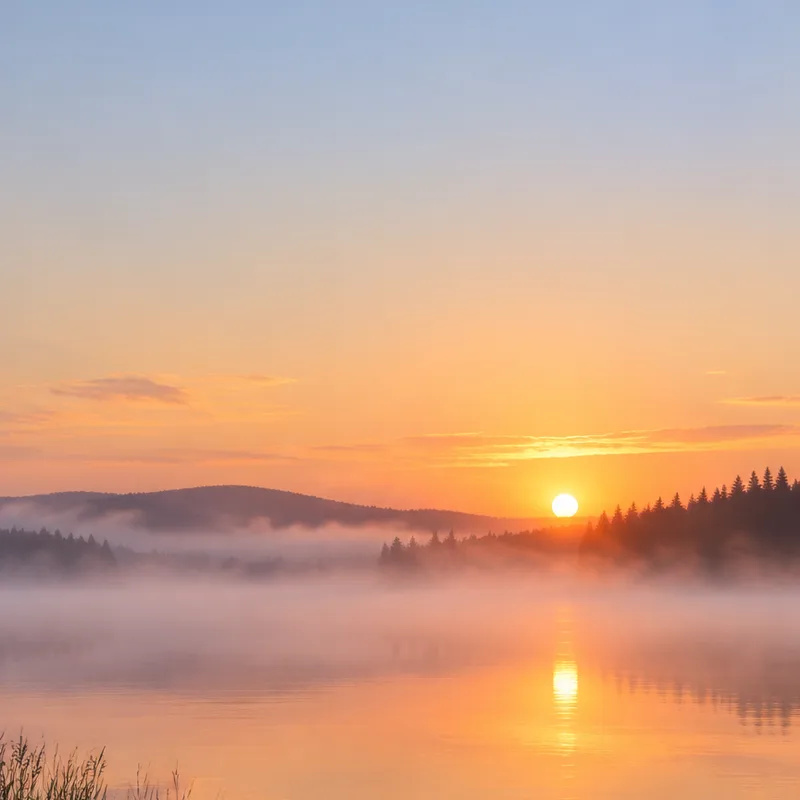
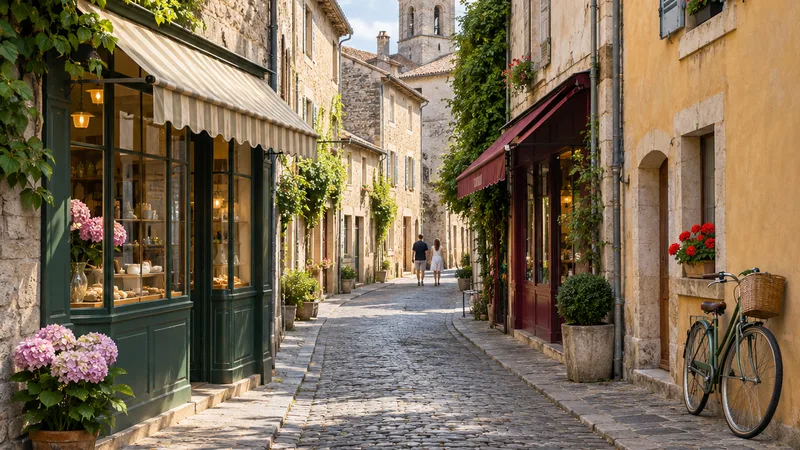
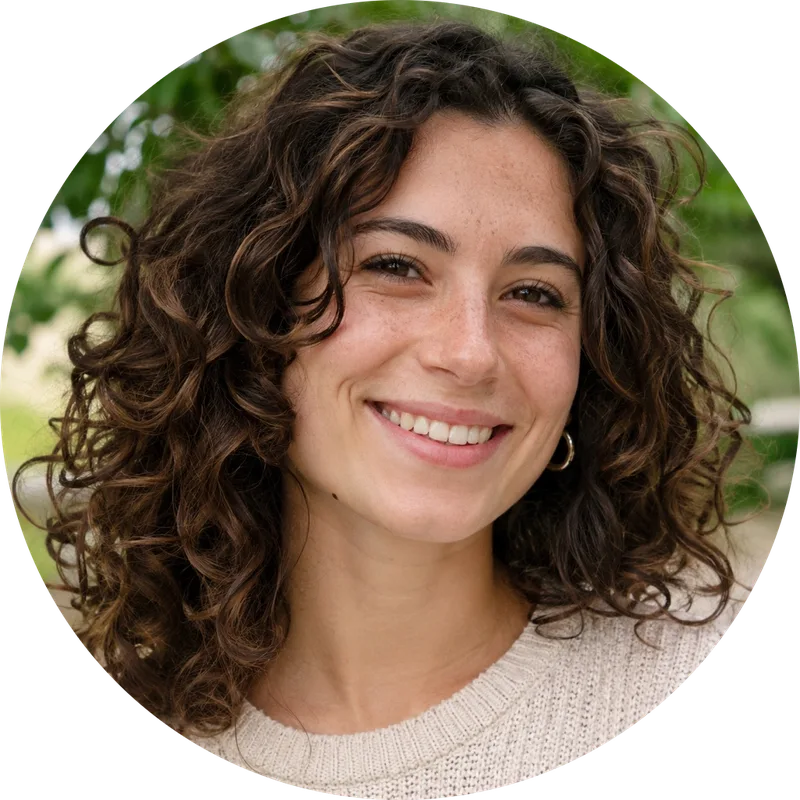
We cropped real pictures in a browser, with the real Crop code, and measured the saved result. The pictures are ones we generated ourselves, not photos of real people. The three pictures at the top of this page are some of the results.
In every case the cropped picture was the same pixels as the matching part of the original, with no resampling. A 9:16 picture cropped to 1:1 came out exactly square. Typing 600 by 400 on a square picture gave exactly 600 by 400. Typing 3000 by 2000 on the same picture gave only the whole picture, 1024 by 1024, because a crop cannot add pixels.
A circle crop for a profile picture
Choose Circle in the same grid and the frame becomes a square with a circle inside it. Press Apply and FlowPix cuts the picture to the square, makes everything outside the circle transparent and saves it as a new PNG beside the original. The original is not changed.
We checked it on a portrait. The four corners of the saved picture were fully transparent, and the pixels inside the circle were the same as in the original. Some sites cut the picture to a circle themselves, so keep the face near the middle of the frame, and check how the site shows it.
What a crop does not do
It does not choose the crop for you. You move the frame yourself, and nothing looks for faces or subjects. It does not make a picture bigger, and it does not fix a picture that is blurry or too small; for that, see the AI Image Upscaler.
It also does not keep the uncropped picture unless you copy it first. A normal crop is applied to the picture on the canvas. Duplicate the picture before you crop it, from the right-click menu, if you want both.
Cropping before you resize or upload
Many guides tell you to crop a picture to a size before you upload it. A good order is to crop first and then check the size of the result. If the picture is already smaller than the size you need, no crop will help, and it is better to start from a bigger picture.
For a post, pick the ratio first and then move the frame over the part that matters. For a profile picture, put the face near the middle. For a print, check the pixels in the panel against the size you need. Keep the original either way.